

Airgapped on-premise installs can't reach Context7 Cloud, but you may still want the content of public libraries that the cloud already indexes. Library Import lets you select those libraries in the cloud dashboard, download them as a single file, and import that file into your on-premise install.
This feature is available only to customers with an offline (airgapped) license. Installs running an online license fetch public library content from the cloud directly and don't need it.
How It Works#
The export bundle carries only snippet content, not embeddings. Embeddings are tied to a specific embedding model, so they aren't portable between deployments. When you import, your on-premise install re-embeds the snippets with its own configured embedding provider. This means imported libraries match the rest of your index and stay fully searchable, with nothing but text crossing the airgap.
Before You Start#
- An offline on-premise license. The export page is only visible to accounts that hold one.
- Your on-premise AI provider is configured (Settings → completed setup wizard). Import re-embeds snippets, so it needs a working embedding provider.
Exporting from Context7 Cloud#
Open the export page
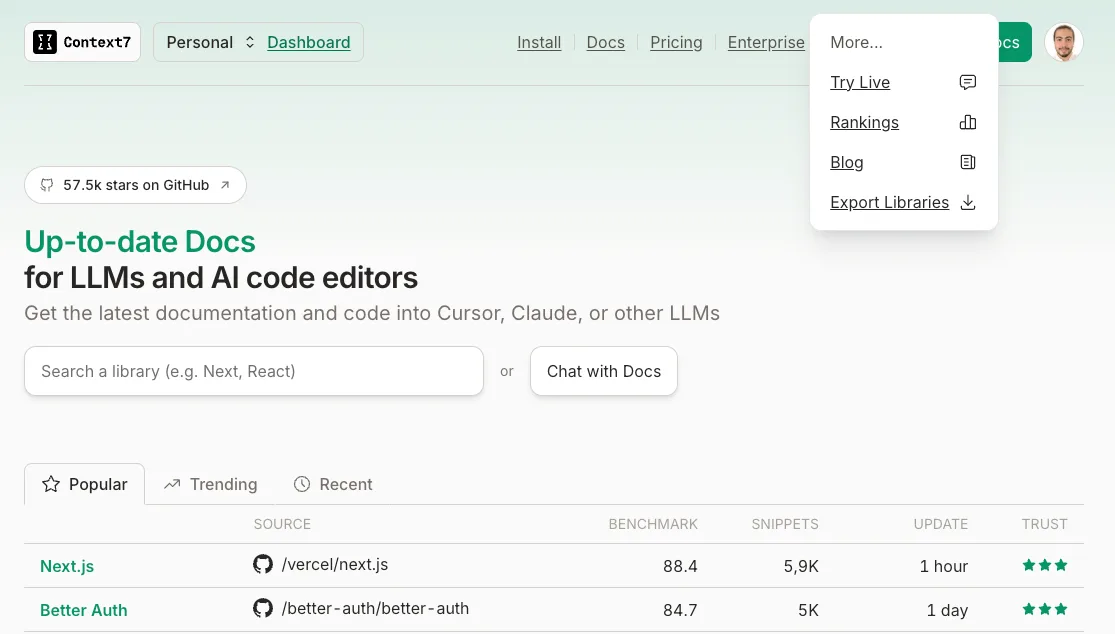
In the Context7 Cloud dashboard, open More → Export Libraries. The link only appears for accounts with an offline license.
Select libraries
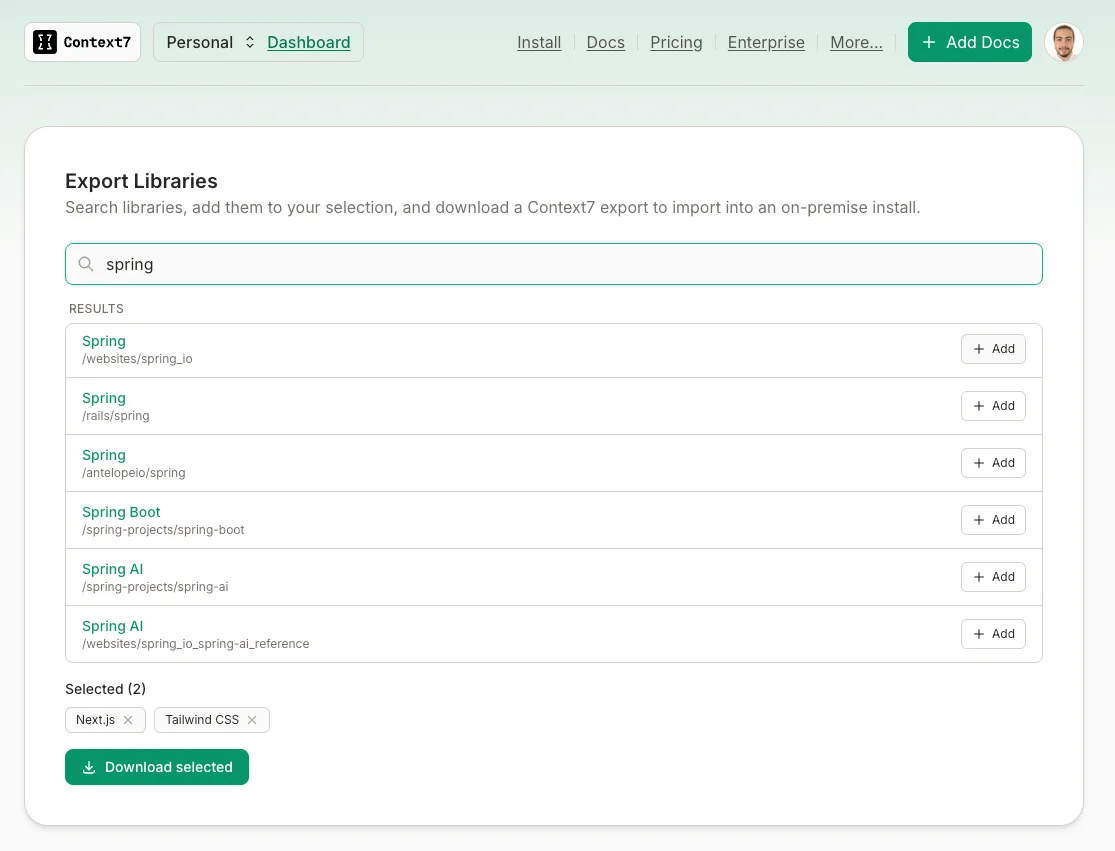
Search for libraries by name and click Add to put them in your selection. The selection persists while you keep searching, so you can collect libraries from several searches before downloading. Remove a library from the selection with the x on its chip.
You can export up to 50 libraries at once.
Download the bundle
Click Download selected. Context7 gathers every code and info snippet for the chosen libraries and produces a single context7-libraries.zip file.
Importing on Your On-Premise Install#
Transfer the file
Move context7-libraries.zip into your airgapped environment using whatever method your security policy allows.
Open the import page
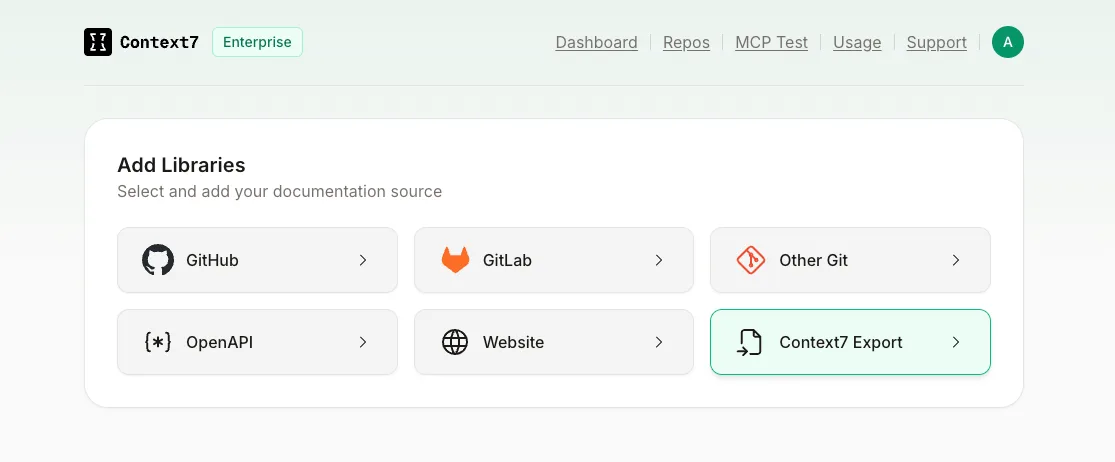
In your on-premise dashboard, click Add Repo, then choose the Context7 Export source. This source only appears on offline-license installs.
Upload and import
Select your .zip export (up to 100 MB). To replace libraries that already exist on this install, enable Overwrite existing libraries. Click Import.
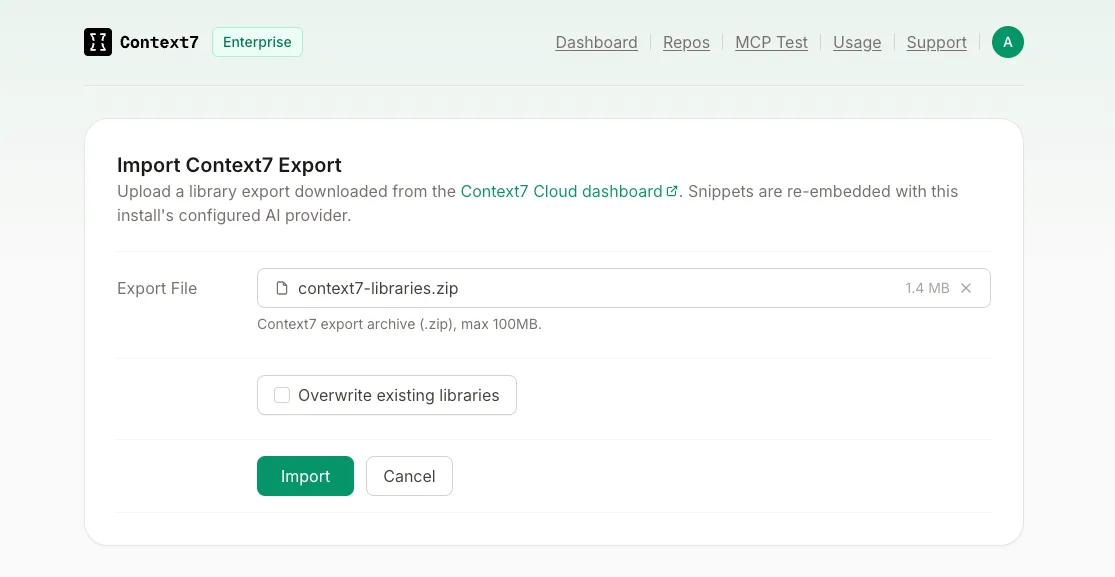
Each library is queued as its own job. Follow progress under the Parse Queue tab while snippets are re-embedded locally.
After Import#
Imported libraries appear in your Repositories list with an Imported badge and are queryable like any other library.
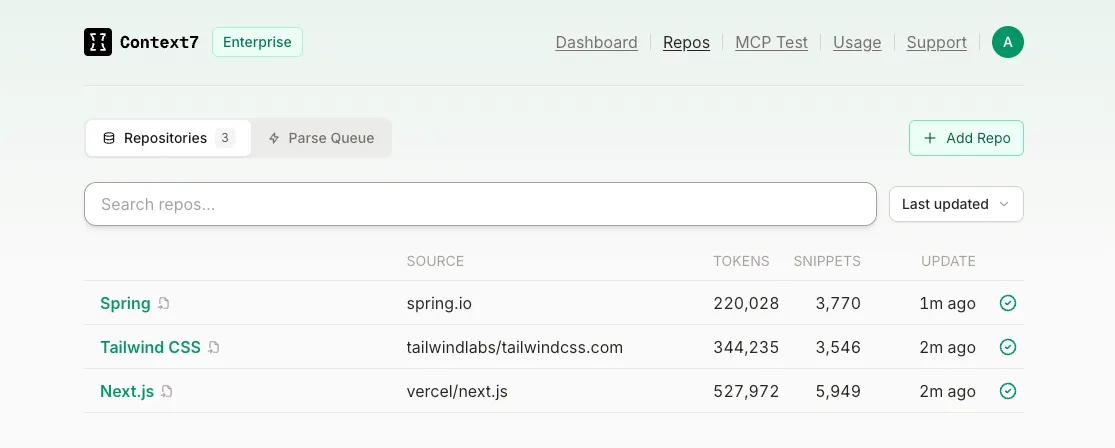
Because your install didn't parse these libraries from source, it can't refresh them. The Refresh action is disabled for imported libraries. To update one, export a fresh bundle from Context7 Cloud and import it again with Overwrite existing libraries enabled.
Re-importing a library you already have does nothing unless Overwrite existing libraries is checked. The import skips libraries that already exist and tells you which ones it skipped.
Automating with the API#
Besides the dashboard flow, both sides expose an API so you can script imports. For example, you can sync a fixed set of libraries into on-premise on a schedule from a bridge host that can reach both networks.
Export from Context7 Cloud
Call the cloud export endpoint with your enterprise license key in the Authorization header. It returns one library's full content (every code and info snippet, without embeddings), already shaped for the import endpoint.
Only public libraries can be exported this way.
Import into your on-premise install
Post that JSON to your install's import endpoint, authenticated with a personal API key. The body is { "libraries": [...], "force": false }, which is exactly the export response shape.
From a host that can reach both networks, such as a bridge or import gateway, the two calls chain directly:
For a strictly airgapped install, save the export response to a file, transfer it the same way you would the .zip, then import it. The import endpoint also accepts the dashboard .zip bundle as a multipart/form-data upload (field bundleFile). See the endpoint reference for details.
The import endpoint is available only on offline-license installs, the same gate as the dashboard flow. A library that already exists is skipped unless you overwrite it with force, either as a ?force=true query param (handy when piping the export straight through) or a "force": true field in a JSON body. The response lists what it queued and skipped.
Limits#
- Up to 50 libraries per export.
- Export files up to 100 MB per import.
- Only public libraries indexed by Context7 Cloud can be exported.