

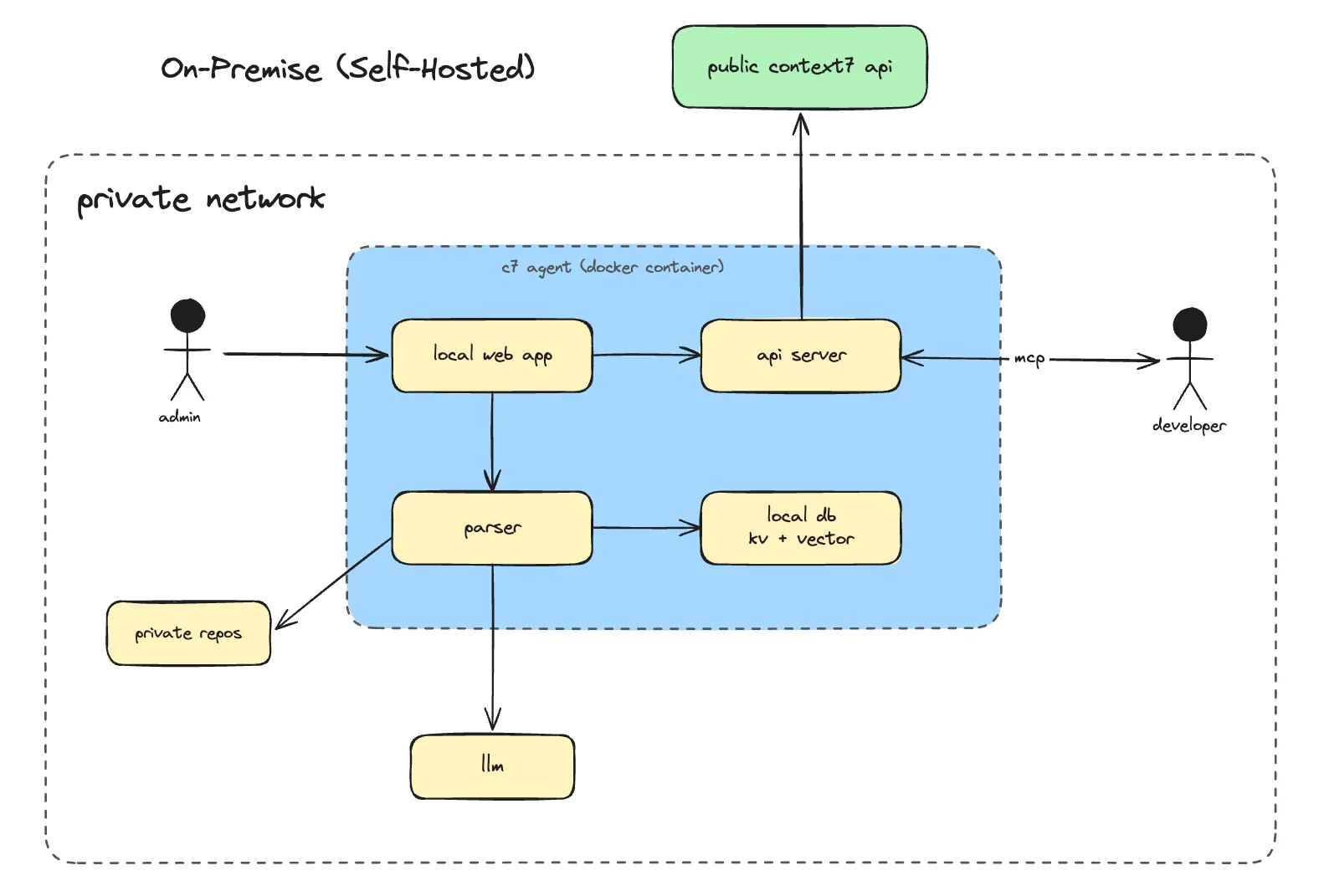
Context7 On-Premise keeps your repositories, generated documentation, application database, vector store, and MCP server in your infrastructure. Only the content required for parsing, embedding, reranking, or source-code documentation is sent to the AI provider you choose.
What's Included#
- Full Context7 parsing and indexing pipeline
- Local vector storage (no external vector DB required)
- Built-in MCP server. Works with any MCP-compatible AI client
- Web UI for managing indexed libraries and configuration
- REST API compatible with the public Context7 API
- Private GitHub and GitLab repository ingestion
Setup#
Request a trial
Go to context7.com/plans and click On-Premise Trial. Fill out the request form. No credit card required. You'll receive a 30-day full-featured license key via email once approved.
Deploy
Follow the deployment guide for your platform:
Complete the setup wizard
Open http://localhost:3000 in your browser. On first launch, the setup wizard guides you through configuring:
- AI Provider - Choose OpenAI, Anthropic, Gemini, AWS Bedrock, or a custom OpenAI-compatible endpoint. Enter the provider credentials and model name.
- Embedding Provider - Use the same provider as your LLM, or configure a separate one for embeddings.
- Git Tokens - Add a GitHub and/or GitLab token for the platforms you use.
All configuration is stored locally in the embedded database and can be updated later from the Settings page.
Ingest your first repository
From the dashboard, click Add Repository and enter a GitHub or GitLab URL. Once ingestion completes, your private docs are ready to query.
You can also add libraries via the REST API:
Connecting Your AI Client#
The Context7 CLI is the recommended way to connect an AI coding agent. Install it once on the machine that runs your client:
For restricted or air-gapped environments, mirror the ctx7 package and its dependencies in your approved internal npm registry. Once installed, on-premise setup does not contact npm, GitHub, or Context7 Cloud. It uses bundled rule and skill content and contacts only your deployment to discover its MCP authentication setting.
Pass the root URL of your deployment (without /mcp or /api) and select the client:
Setup reads the deployment's MCP authentication setting. When MCP authentication is disabled, no credential is written. When it is enabled, the dashboard's Connect card presents two steps: sign in and click Create API key, then copy the command after the dashboard inserts the one-time-visible key. Select Configure manually to reveal the equivalent client-native configuration instead. If you run the base command without --api-key, the CLI requests the key with hidden input.
For non-interactive automation, provide the personal key through the environment:
You can use --api-key ctx7op-... instead, but command-line arguments may be retained in shell history. Setup writes the MCP client configuration, a Context7 rule, and a bundled context7-mcp skill. The bundled files mean the deployment does not need to expose Context7 Cloud's skill APIs.
Custom --base-url setup uses the deployment's Streamable HTTP endpoint. Hosted OAuth, local stdio transport, and CLI-query mode are not available for on-premise targets.
Manual configuration#
If your client is not supported by ctx7 setup, point it at <deployment-root>/mcp. When MCP authentication is enabled, send the personal key as a standard bearer token:
For other clients, see All Clients.
Configuration#
Environment Variables#
These are set in your docker-compose.yml or .env file before starting the container.
| Variable | Required | Description |
|---|---|---|
LICENSE_KEY | Yes | License key issued by Upstash |
PORT | No | HTTP port (default: 3000) |
DATA_DIR | No | Data directory inside the container (default: /data) |
Provider and model selection, non-Bedrock provider keys, and git tokens are configured through the setup wizard and can be updated anytime from the Settings page in the web UI. Bedrock is the exception for authentication: it can use AWS_BEARER_TOKEN_BEDROCK, standard AWS credential environment variables, a mounted shared profile, or a workload IAM role. See AWS Bedrock for the supported credential chain.
AI Provider Settings#
Configured via the Settings page in the web UI.
| Setting | Description |
|---|---|
| LLM Provider | openai, anthropic, gemini, bedrock, or custom |
| LLM API Key | API key for your chosen provider; optional for Bedrock with workload credentials |
| LLM Model | Model name or Bedrock model/inference-profile ID |
| AWS Region | Region used for Bedrock LLM and embedding requests |
| Base URL / Bedrock endpoint | Custom OpenAI-compatible endpoint, or an optional Bedrock Runtime endpoint |
Examples#
Embedding Settings#
By default, Context7 uses the same provider as your LLM for generating embeddings. You can configure a separate embedding provider if needed.
| Setting | Description |
|---|---|
| Embedding Provider | openai, gemini, bedrock, or custom |
| Embedding API Key | Separate key; inherits the LLM key only when both use the same provider |
| Embedding Model | Embedding model name, such as text-embedding-3-small or amazon.titan-embed-text-v2:0 |
| Embedding base URL / Bedrock endpoint | Custom embedding endpoint, or an optional Bedrock Runtime endpoint |
See AWS Bedrock for IAM, model, region, and private-network configuration.
Git Access Tokens#
Configured via the Settings page in the web UI.
| Setting | Description |
|---|---|
| GitHub Token | GitHub Personal Access Token. Required for GitHub repositories |
| GitLab Token | GitLab token. Required for GitLab repositories |
You only need tokens for the platforms you use. If you only parse GitLab repos, you don't need a GitHub token, and vice versa. Create tokens with repo scope (GitHub) or read_repository scope (GitLab) for private repository access.
Access Control#
Admin credentials are set during first login (default: admin / admin). Change these immediately after setup via Settings > Change Credentials.
The Settings page lets you control which operations are available without authentication, including MCP and API search access.
| Permission | Default | Description |
|---|---|---|
| Allow anonymous parse | Off | Allow unauthenticated users to trigger parsing |
| Allow anonymous refresh | Off | Allow unauthenticated users to refresh libraries |
| Allow anonymous delete | Off | Allow unauthenticated users to delete libraries |
| Allow anonymous support bundle | Off | Allow unauthenticated support bundle downloads |
| Require MCP authentication | Off | Require a personal API key for /mcp and external /api/v2 search requests |
When MCP authentication is enabled, each user creates personal keys from Personal Settings > API Keys. Clients send the key as Authorization: Bearer <key>.
Policies#
Policies let you control which public documentation from the Context7 cloud is accessible to your on-premise instance. They do not affect locally parsed on-premise content.
Access Policies from Settings > Policies tab. Requires admin login and a valid LICENSE_KEY.
For details on source type toggles and library filters, see Customizing What Is Retrieved.
Web UI#
Open your deployment URL in a browser to access the dashboard. From here you can:
- Add and remove libraries
- Trigger re-indexing
- Monitor parsing status and logs
- Update AI provider settings, git tokens, and permissions
- Configure policies for public cloud documentation access
- Test MCP connectivity
- Change admin credentials
Operations#
For updating, health checks, and other operational tasks, see the deployment guide for your platform:
Support#
For license issues, upgrade requests, or deployment questions, contact context7@upstash.com.