

Add private sources to Context7 to make your internal documentation available to AI coding assistants. You can add sources from GitHub, GitLab, Bitbucket, other Git providers, Confluence, and OpenAPI specifications.
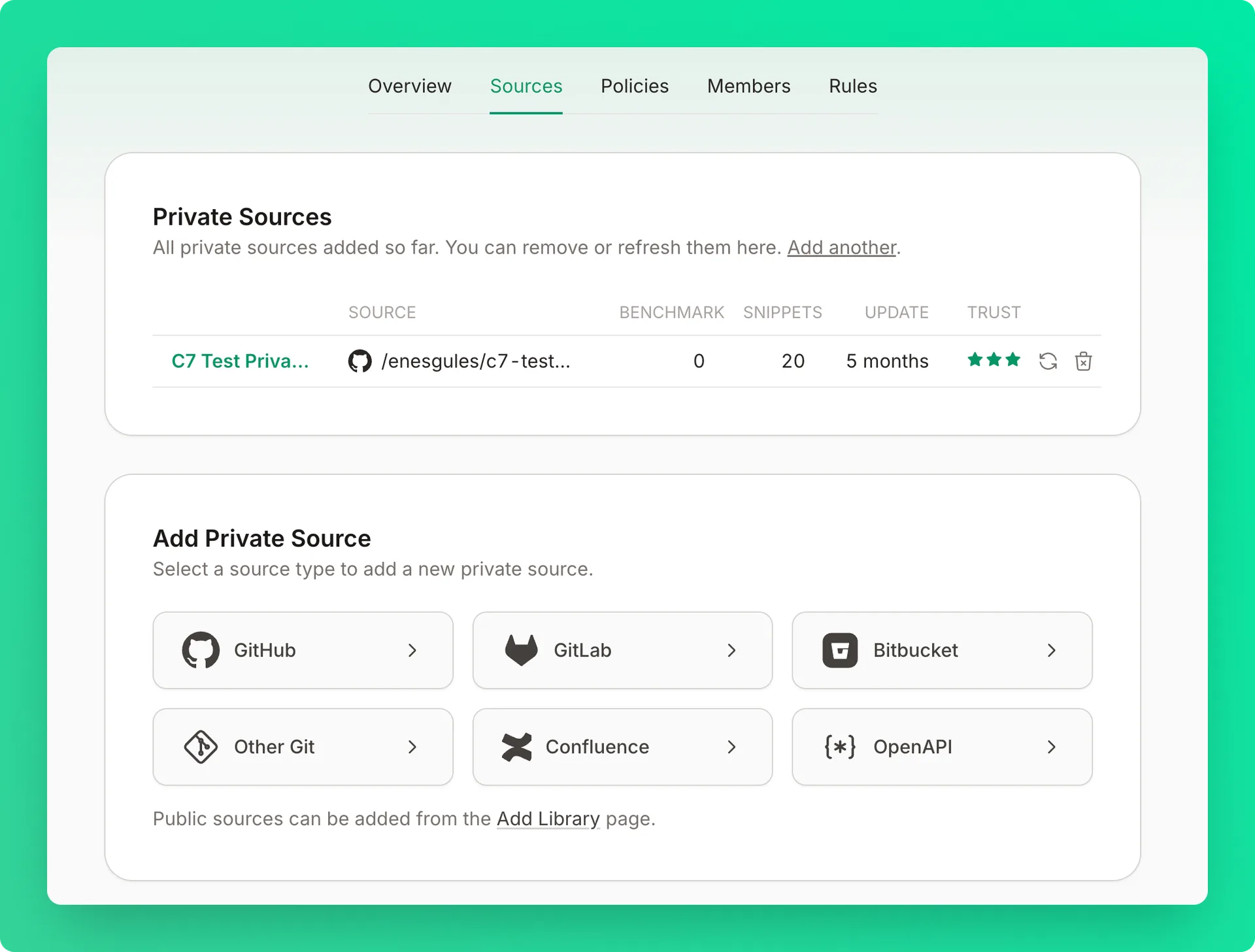
Adding Private Sources#
Open the Sources tab
Go to your teamspace's Sources tab.
Add a source
Click Add another to open the source type selector.
Select a source type
- GitHub — connect your GitHub account and select a repository
- GitLab — connect your GitLab account and select a project
- Bitbucket — connect your Bitbucket account and select a repository
- Other Git — add any Git repository by URL
- Confluence — connect your Confluence workspace
- OpenAPI — add an OpenAPI specification
Authorize access
Authorize Context7 to access your source (if required).
Configure LLM analysis (optional)
For repositories with little or no written documentation, check Generate docs to have Context7 generate documentation from the source code. Also available as the generateDocs flag in the API.
Submit for parsing
Submit the source for parsing.
Source Management#
Refreshing Documentation#
Keep your private documentation up to date:
- Click the refresh icon next to the source
- Context7 re-parses the source
- You're only charged for changed content — cached pages are free
When to refresh:
- After major documentation updates
- After releasing new features
- When you notice outdated information
Removing Sources#
Delete the source
Click the trash icon next to the source.
Confirm deletion
Confirm in the modal. The source documentation becomes unavailable immediately.
This action is permanent. The source will no longer be accessible via the API.
Permissions#
Access to private source management is restricted by role. Only Owners and Admins can add, refresh, or remove private sources. Developers can view source documentation but cannot manage sources.
See Teamspace Management for the complete permissions table.
Configuration#
Using context7.json#
Add a context7.json file to your repository root for better control over parsing:
See the Library Owners page for complete configuration options.