

Enterprise-Managed Auth (EMA) lets your Okta administrators decide who can use the Context7 MCP server, in the same console where you manage every other app. Developers sign in once with their corporate Okta account and their MCP client is connected automatically. There is no per-user OAuth consent and no API keys to distribute.
It implements the MCP Enterprise-Managed Authorization extension: Okta issues a short-lived Identity Assertion (ID-JAG) for the user, Context7 validates it against your Okta tenant, and resolves the user to your teamspace by email.
Enterprise-Managed Auth currently works with Claude Code as the MCP client.
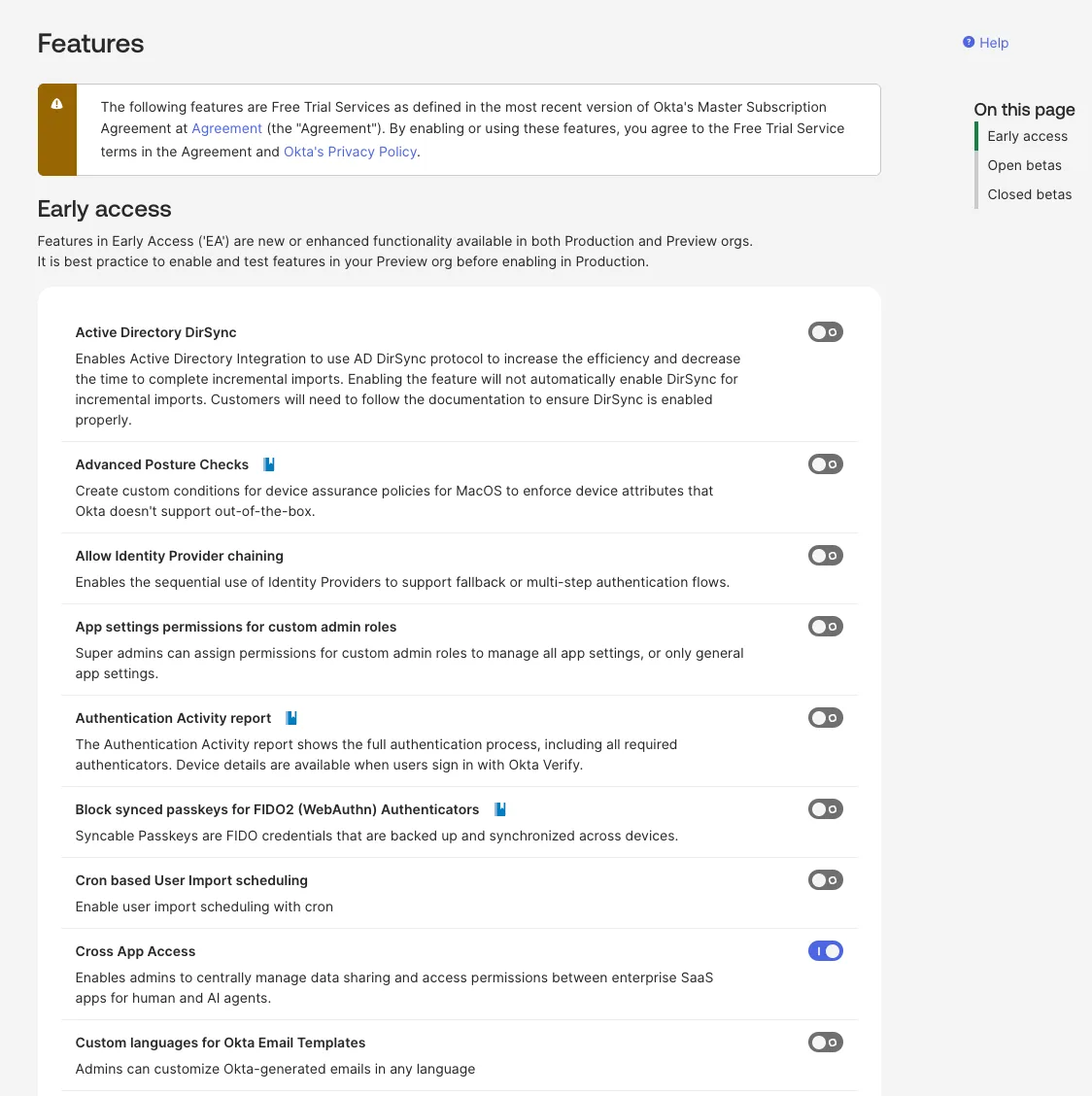
Okta Cross-App Access (the productized ID-JAG flow) is an Early Access feature. Enable it from Admin Console → Settings → Features before you start. EMA also requires a Context7 enterprise teamspace.
How it works#
- A developer signs in to their MCP client with your Okta org.
- The client asks Okta for an ID-JAG scoped to Context7. Okta applies your access policy (group, role, conditional access) and issues it only if the user is allowed.
- The client exchanges the ID-JAG with Context7 for an access token, then calls
mcp.context7.com. - Context7 validates the ID-JAG against your tenant and, on first sign-in, provisions the user as a teamspace member automatically (matched by email).
Access is governed entirely in Okta. There is no user list to maintain in Context7: anyone your admin assigns to the connected app is provisioned on first sign-in. Removing them from the app blocks new sign-ins immediately, and any active session ends when its short-lived access token expires (within an hour).
Before you start#
- An Okta org with Cross App Access enabled.
- A Context7 enterprise teamspace. The Enterprise-Managed Auth settings appear only for enterprise plans.
- Developers assigned to the connected Okta app. They are provisioned into the teamspace automatically on first sign-in, so there is no manual user list to maintain.
Part 1: Configure Okta#
Step 1: Enable Cross App Access#
In the Admin Console, go to Settings → Features, find Cross App Access under Early Access, and turn it on.
Step 2: Add Context7 as a resource app#
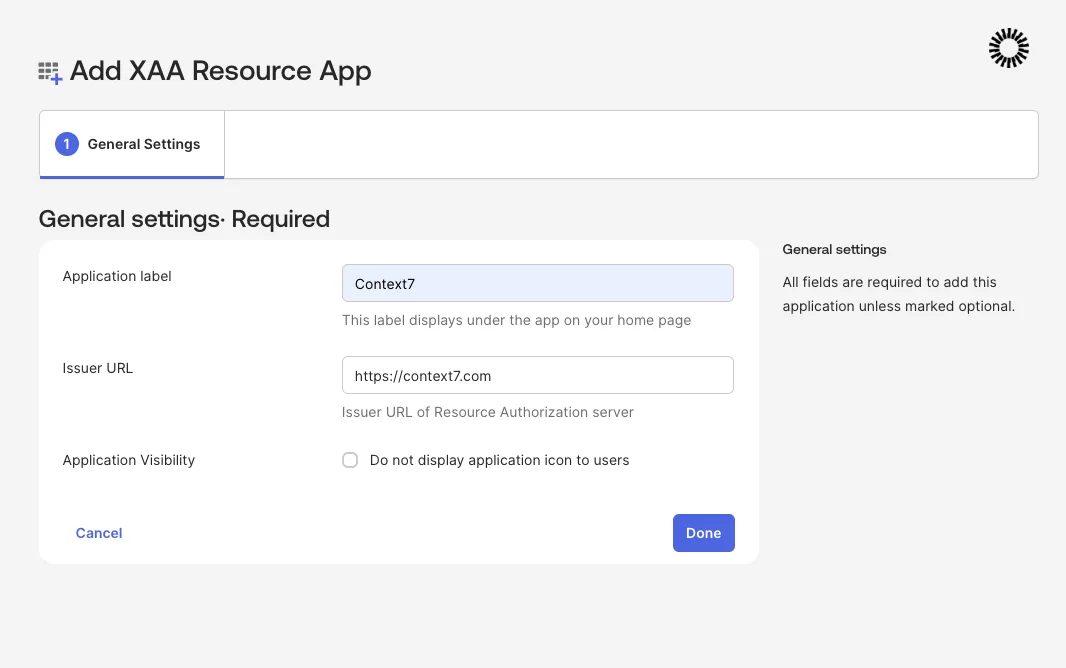
Go to Applications → Applications → Browse App Catalog, search for XAA Resource App, and click Add Integration.
- Application label:
Context7 - Issuer URL:
https://context7.com
Click Done.
Step 3: Add your MCP client as a requesting app#
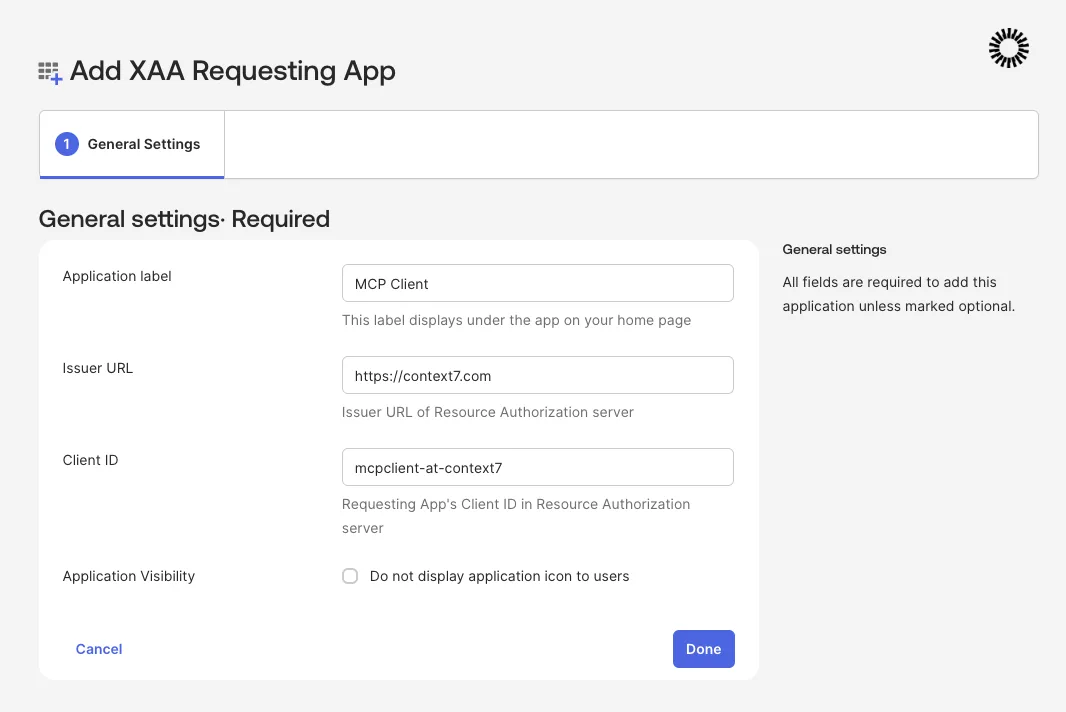
Browse the catalog again, search for XAA Requesting App, and click Add Integration.
- Application label: a name for the MCP client (for example
MCP Client) - Issuer URL:
https://context7.com - Client ID: the client identifier the MCP client uses (for example
mcpclient-at-context7)
Click Done, then open the Sign On tab and note the Client ID and secret if your client needs them.
Step 4: Connect the two apps#
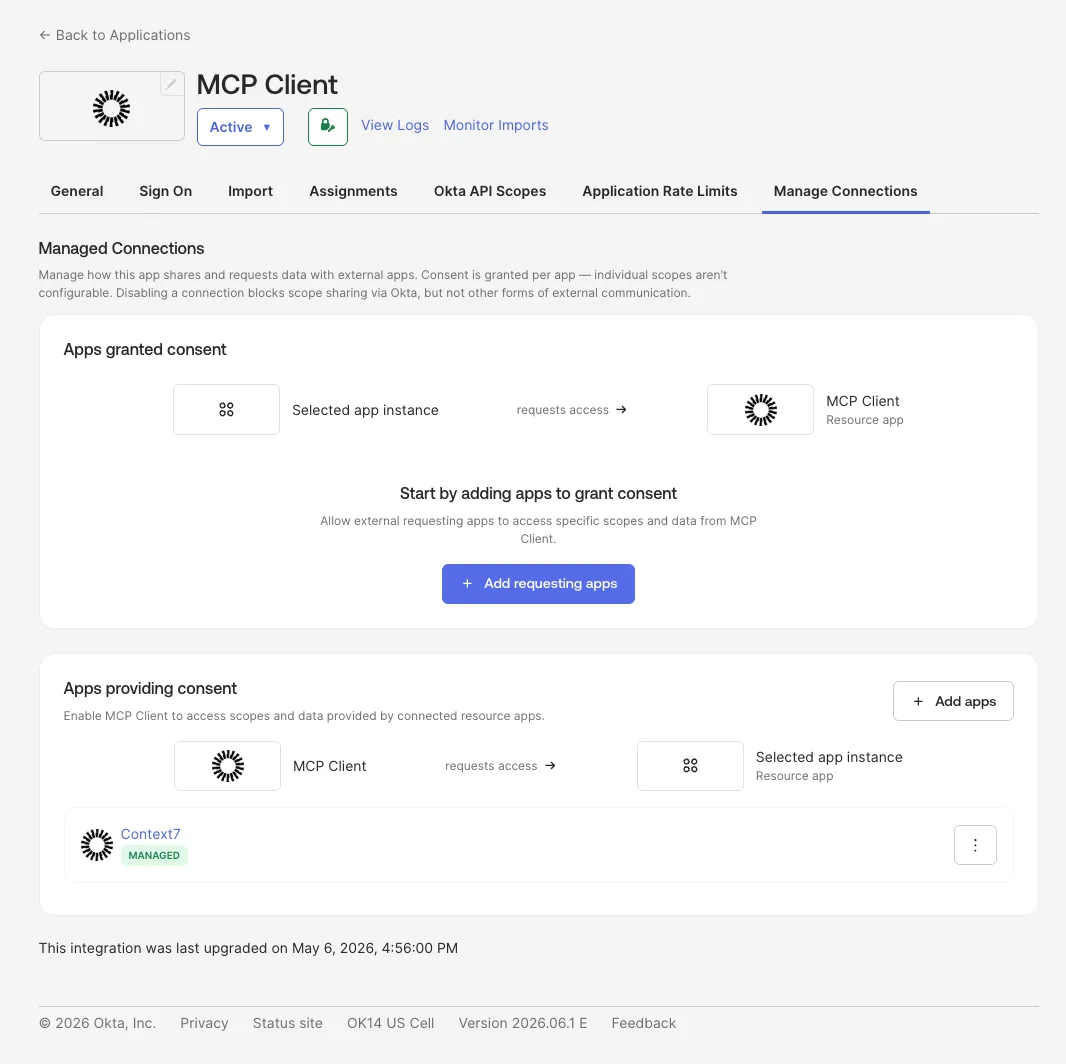
Open the requesting app → Manage Connections tab. Under Apps providing consent, choose Add resource apps, select Context7, and Save.
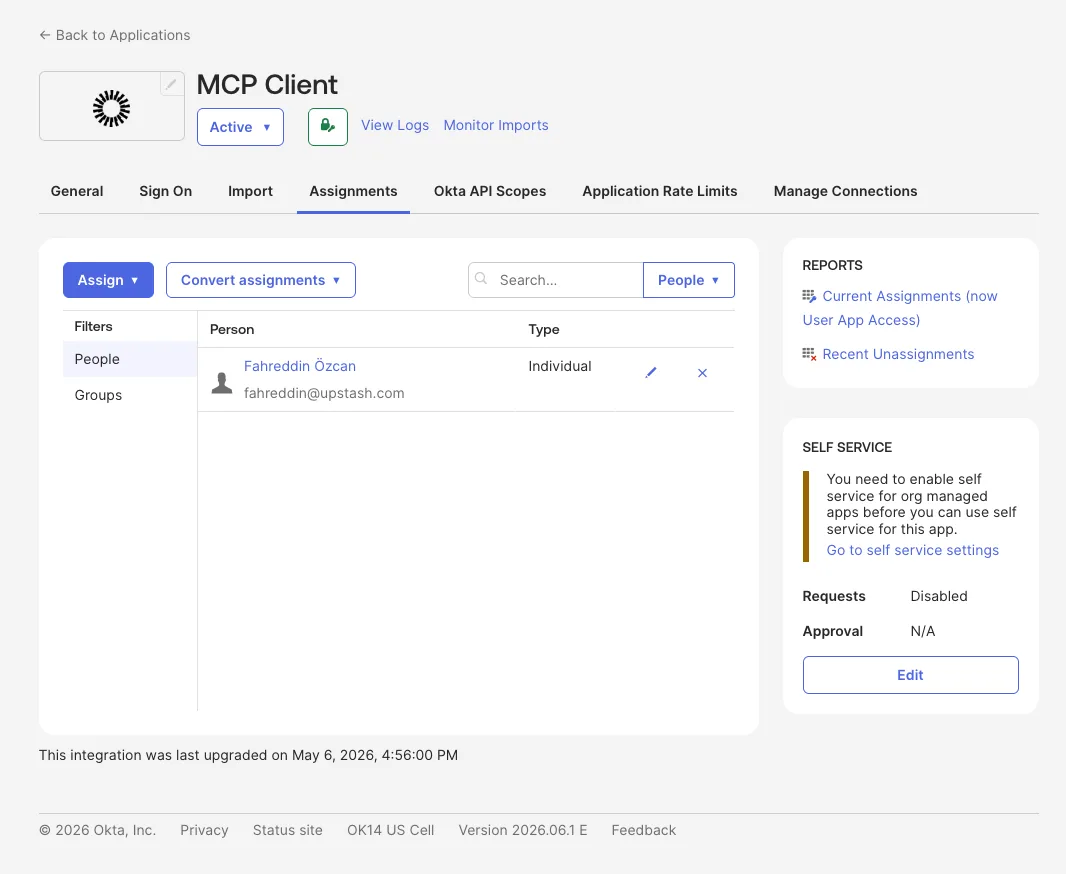
Step 5: Assign your users#
On both apps, open the Assignments tab and assign the people (or groups) who should have access. Only assigned users can obtain an ID-JAG.
Part 2: Configure Context7#
Sign in to context7.com/dashboard, select your enterprise teamspace, open the Enterprise tab, and select Okta.
- Identity provider issuer: your Okta org issuer, for example
https://<your-org>.okta.com. - Scope (optional): scopes to grant on the issued access token. Leave blank to pass through whatever Okta authorizes.
Click Configure, enter the issuer, and Save. Context7 validates the issuer against your tenant's OpenID Connect metadata on save.
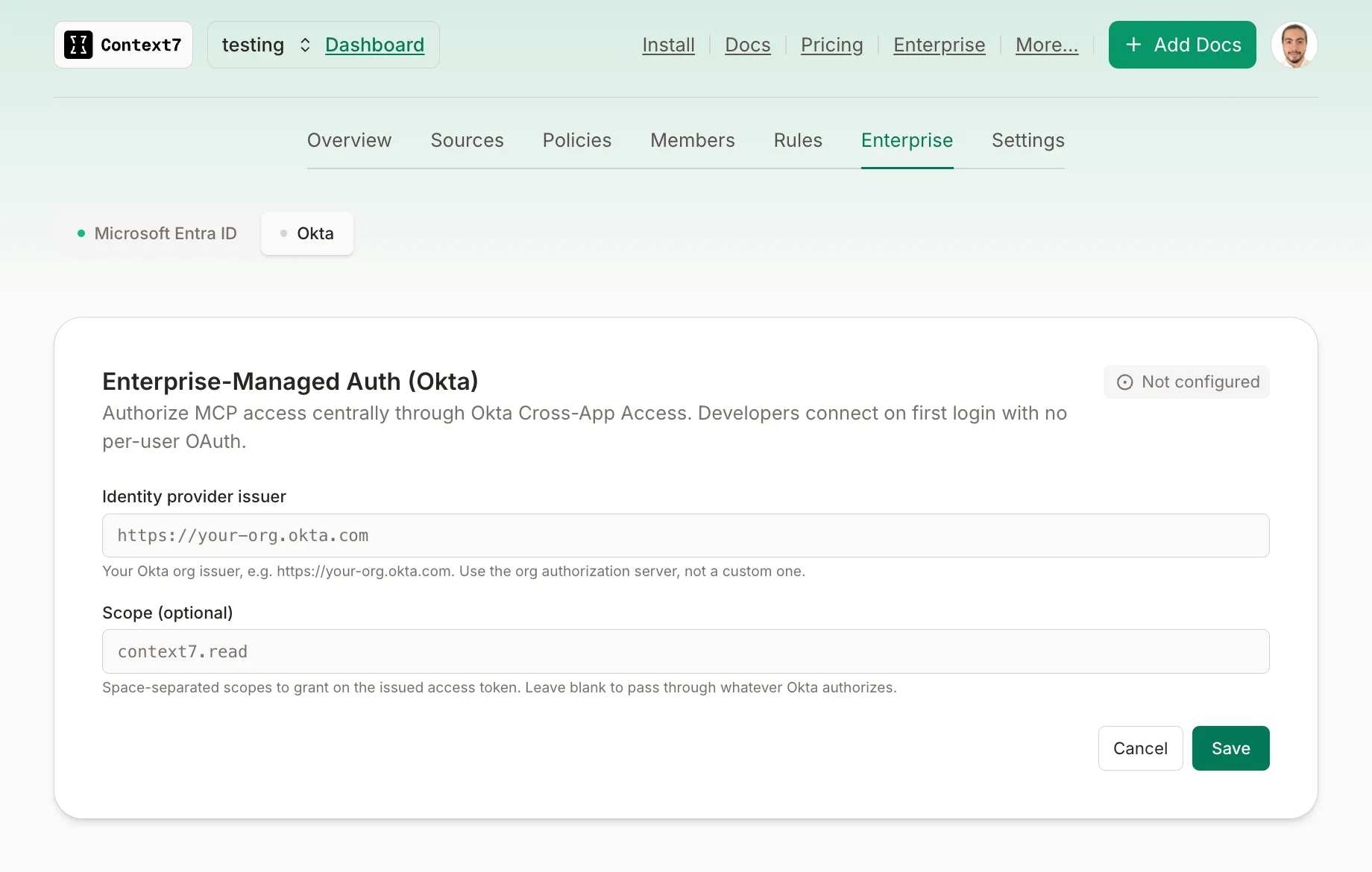
Use your org authorization server issuer (https://<your-org>.okta.com), not a custom authorization server. Cross-App Access apps cannot use custom authorization servers.
Part 3: How developers connect#
Enterprise-Managed Auth is wired on the client side by your organization, not per developer. The Okta sign-in isn't triggered by a server URL someone pastes. It happens because Claude Code is configured to use your enterprise IdP for managed connectors.
Your admin connects the Okta org to Claude and enables the Context7 MCP server (https://mcp.context7.com/mcp) as a managed connector. After that, anyone using Claude Code with their corporate Okta identity gets Context7 automatically: Claude Code obtains an ID-JAG from Okta and exchanges it with Context7 for an access token. There is no token to paste and no per-user OAuth.
See Claude's Enterprise-Managed Auth documentation for the client-side admin setup.
Troubleshooting#
unauthorized_client / "client cannot use a custom authorization server"#
The sign-in or token-exchange used a custom authorization server. Use the org authorization server endpoints (https://<your-org>.okta.com/oauth2/v1/...).
A valid Okta user can't be provisioned#
Context7 provisions members from the email claim on the ID-JAG, so the connected app must request the email scope at sign-in (it's included in the setup above). If provisioning still fails, the teamspace may be at its member limit.
The user receives no token at all#
The user is not assigned to the connected apps in Okta, or the connection between the requesting and resource apps was not saved. Re-check Steps 4 and 5.
What this does not cover#
- Identity providers other than Okta. EMA currently supports Okta as the IdP. For Microsoft Entra, see Microsoft Entra ID.
- Group-based authorization inside Context7. Okta decides who can obtain a token; Context7 authorizes against teamspace membership. Restricting which libraries a group can access is not configured here.