
Every Docs7 site gets a *.docs7.io URL. You can also serve it from an address you own:
- Its own domain, such as
docs.example.com. You add DNS records, and Docs7 serves the site and issues its HTTPS certificate. - A path on an existing website, such as
example.com/docs. Your website sends that path to Docs7 through a reverse proxy.
When you save a custom URL, Docs7 rebuilds the production site. Canonical URLs, the sitemap, and llms.txt then use the new address.
Custom URLs are available for sites connected to GitHub. Sites deployed with docs7 deploy stay on their *.docs7.io URL.
Use your own domain#
Add the domain
Open Docs7, choose a site, then open Settings. In the Domain card, select Its own domain, enter the hostname, and click Add domain.
Use a subdomain such as docs.example.com. Leave the path empty to serve the docs from the root of the domain.
Add the DNS records
Docs7 shows the records for your domain. Add each one at your DNS provider. Use the copy buttons, because some providers add the zone name to the record name for you.
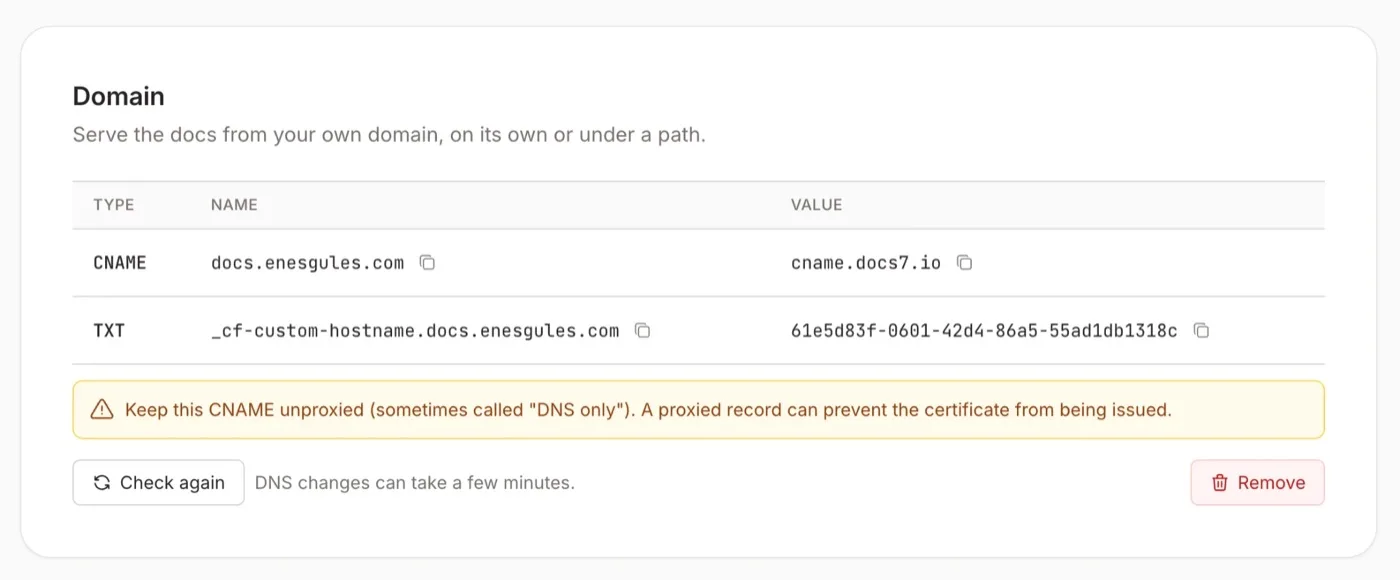
| Type | Name | Value |
|---|---|---|
CNAME | docs.example.com | cname.docs7.io |
TXT | _cf-custom-hostname.docs.example.com | Shown in the dashboard |
The CNAME record sends traffic for the domain to Docs7. The TXT record verifies the hostname. Docs7 can show more records, for example when the certificate authority asks for DNS validation. Add every record in the table.
If your DNS is on Cloudflare, set the CNAME to DNS only (grey cloud). A proxied record can prevent the certificate from being issued.
Check the domain
Click Check again. DNS changes can take a few minutes, and the HTTPS certificate can take a few more.
When the domain is ready, the settings show the domain as a link with an Active tag. Docs7 also checks the domain after each production build.
Root domains#
The CNAME record for a root domain such as example.com needs a DNS provider that supports CNAME flattening, or an ALIAS or ANAME record. Cloudflare DNS flattens CNAME records at the root automatically. If your provider does not support this, use a subdomain.
Domain status#
| What you see | What it means |
|---|---|
| DNS changes can take a few minutes. | Docs7 waits for the DNS records. |
| The HTTPS certificate is pending. | DNS is correct. The certificate is being issued. |
| An error message and Retry setup | Setup failed. Correct the problem in the message, then click Retry setup. |
| Active | The domain serves the latest production build. |
| Building or Build failed | The rebuild for the new address is running or failed. Open Builds to see the log, or click Retry build. |
Serve from a path#
Use this when your website already runs on example.com and the docs must live under a path such as /docs.
Add the path
In the Domain card, select A path on an existing website. Enter the domain, such as example.com, and the path, such as docs. Then click Add domain.
Docs7 rebuilds the site under that path. The site is then also available at https://<slug>.docs7.io/docs, which is the origin for your proxy.
Configure your website
Send /docs and every path below it to the Docs7 origin. Forward the method, body, and query string, and set the Host header to the Docs7 hostname. Do not cache HTML responses.
Docs7 serves its scripts, styles, and images below the same path, so no other paths need a rule.
The dashboard shows the configuration for your site on each tab, and Copy prompt gives a coding agent the same instructions. The examples below use the slug acme.
Create a Worker and add two Worker Routes:
Use Worker Routes, not a Worker Custom Domain. A Custom Domain takes the whole hostname and can replace your website.
Add the rewrites to vercel.json at the root of the project that serves example.com, then deploy. If the file already has a rewrites array, add these entries to it.
In the distribution for example.com:
- Add an origin for
acme.docs7.iowith the protocol set to HTTPS only. - Add a behavior with the path pattern
/docs*that uses this origin. - Set the cache policy of the behavior to
CachingDisabled, and use an origin request policy that forwards theHostheader.
Keep the default behavior (*) on your existing origin.
Configure your reverse proxy with these values:
| Setting | Value |
|---|---|
| Match | /docs and /docs/* |
| Origin | https://acme.docs7.io/docs |
Host header | acme.docs7.io |
| Forward | Method, body, and query string |
Check the connection
Click Check connection. Docs7 requests https://example.com/docs and looks for the X-Docs7-Site-Id response header of your site. The proxy must pass response headers through unchanged.
You can do the same check yourself:
When the path is connected, the settings show it with an Active tag. Docs7 also checks the path after each production build.
The first segment of the path cannot be a path that Docs7 uses, such as /api, /mcp, /login, or /_next.
Prove domain ownership#
Docs7 asks for one more record when the domain already points at cname.docs7.io before you add it. For example, the domain was used by another Docs7 site and its DNS records were not removed.
In this case, the settings show one TXT record:
| Type | Name | Value |
|---|---|---|
TXT | _docs7-verify.docs.example.com | docs7-verify=<random value> |
Add the record and click Check again. When Docs7 finds it, the domain is attached to your site and the usual records appear. You can remove the _docs7-verify record after the domain is active.
Remove a domain#
Click Remove in the Domain card. The custom URL stops working, and the *.docs7.io URL stays live. Docs7 rebuilds the site for its *.docs7.io address.
Then delete the Docs7 records at your DNS provider, or remove the proxy rule from your website. A CNAME that still points at Docs7 makes the next owner of the domain prove ownership.
To move the docs to a different domain, remove the current domain and add the new one.
Troubleshooting#
The certificate stays pending
- On Cloudflare DNS, set the
CNAMErecord to DNS only. - Remove any
AorAAAArecords for the same name. The name must have only theCNAMErecord. - If the domain has
CAArecords, allowletsencrypt.org,pki.goog, andssl.com.
The check says the answer does not come from Docs7
The page at the custom path has no X-Docs7-Site-Id header for this site. Make sure the proxy rule matches the path, points at the Docs7 origin shown in the dashboard, and passes response headers through.
Docs7 could not read the path
Docs7 could not open https://example.com/docs. Make sure the website answers over HTTPS, and that a firewall does not block the request.
Visitors end up on docs7.io
Do not let the proxy follow redirects. A redirect from Docs7 must go back to the visitor unchanged, as the Cloudflare example does with redirect: "manual".