> ## Documentation Index
> Fetch the complete documentation index at: https://context7.com/docs/llms.txt
> Use this file to discover all available pages before exploring further.
# Manage API Keys
> Create and manage API keys for Context7 authentication
API keys authenticate your requests to Context7's documentation services.
## Managing API Keys
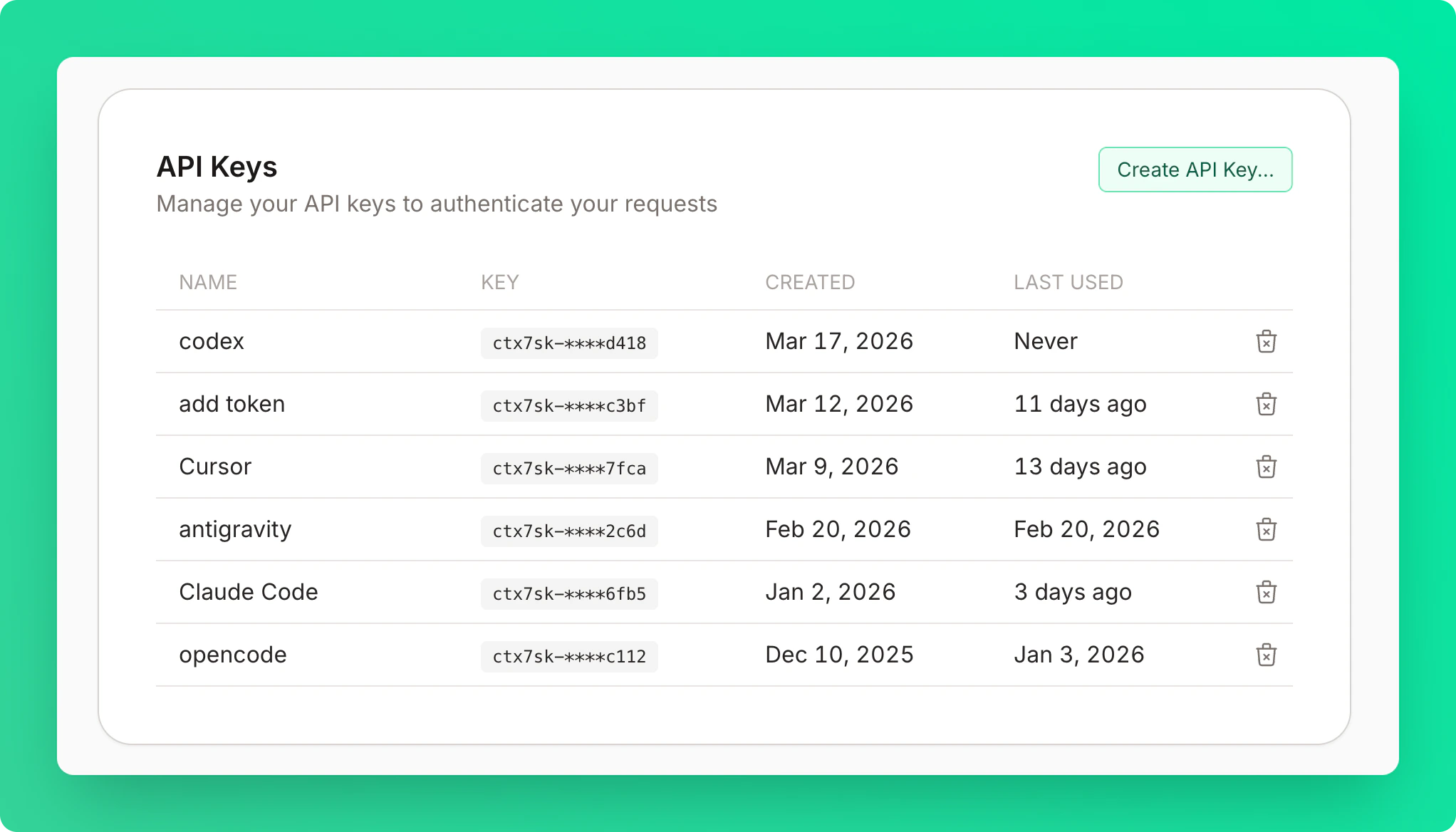 ### Creating API Keys
Click **Create API Key** in the API Keys card.
Enter a name (optional but recommended). Descriptive names like "Cursor", "Claude", "VS Code", or "Devin Desktop" help you identify the key later.
Keys are shown only once for security. The format is `ctx7sk-**********************`.
Use it in your requests or MCP configuration:
```bash theme={null}
curl "https://context7.com/api/v2/context?libraryId=/vercel/next.js&query=routing" \
-H "Authorization: Bearer YOUR_API_KEY"
```
Store your API key securely. You won't be able to see it again after creation.
### Revoking Keys
Click the delete button next to the key you no longer need.
Confirm in the modal. The key deactivates immediately — all requests using it will fail.
Revoking a key is permanent and cannot be undone. Update any applications using the key before
revoking.
### Creating API Keys
Click **Create API Key** in the API Keys card.
Enter a name (optional but recommended). Descriptive names like "Cursor", "Claude", "VS Code", or "Devin Desktop" help you identify the key later.
Keys are shown only once for security. The format is `ctx7sk-**********************`.
Use it in your requests or MCP configuration:
```bash theme={null}
curl "https://context7.com/api/v2/context?libraryId=/vercel/next.js&query=routing" \
-H "Authorization: Bearer YOUR_API_KEY"
```
Store your API key securely. You won't be able to see it again after creation.
### Revoking Keys
Click the delete button next to the key you no longer need.
Confirm in the modal. The key deactivates immediately — all requests using it will fail.
Revoking a key is permanent and cannot be undone. Update any applications using the key before
revoking.