> ## Documentation Index
> Fetch the complete documentation index at: https://context7.com/docs/llms.txt
> Use this file to discover all available pages before exploring further.
# Microsoft Entra ID (SSO)
> Let your workspace sign in with Microsoft Entra ID instead of shared passwords.
Context7 On-Premise supports single sign-on with Microsoft Entra ID (formerly Azure AD). Once configured, anyone in your Entra tenant who is assigned one of the Context7 app roles can sign in to the dashboard with their work account, and Context7 creates a matching user record automatically on their first login.
This guide walks through the full setup end-to-end: registering an application in Microsoft Entra, wiring it into Context7, and verifying a user can sign in. Plan for about 10 to 15 minutes for the Entra side and a minute or two on the Context7 side.
## Before you start
You'll need:
* An **Entra admin** (or someone who can register applications in your tenant).
* A running Context7 On-Premise instance that you can reach in your browser.
* The Context7 admin password. This is the same account you use to open **Workspace Settings** today. On a fresh install it is `admin` / `admin` until you change it.
Entra SSO is an **addition** to password login, not a replacement. The seeded admin account keeps working even after you turn on SSO, so you never get locked out if the Entra app goes sideways.
## Part 1: Register the application in Microsoft Entra
### Step 1: Create a new app registration
In the [Azure portal](https://portal.azure.com), open **Microsoft Entra ID** from the left sidebar. Expand **Manage** and click **App registrations**, then **+ New registration**.
Fill in the form:
* **Name**: `Context7` (anything memorable, your users won't see it)
* **Supported account types**: *Accounts in this organizational directory only*
* **Redirect URI**: pick **Web** from the dropdown and enter `https:///api/auth/entra/callback`. For a local test deployment that's usually `http://localhost:3000/api/auth/entra/callback`.
Click **Register**.
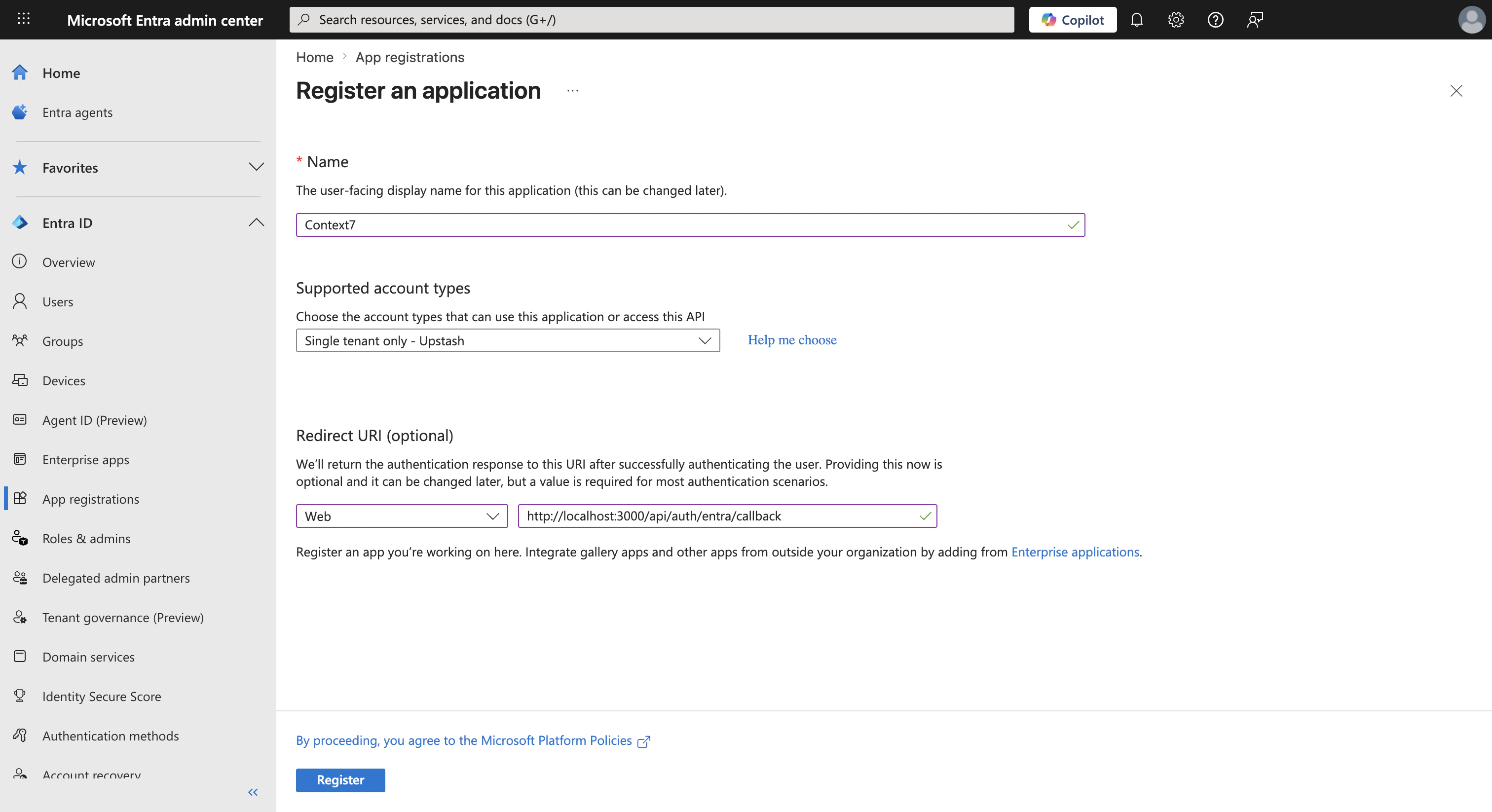 The redirect URI has to match *exactly* what Context7 sends later: same scheme (`http` vs `https`), same host, same port, same path. Microsoft compares byte-for-byte.
### Step 2: Copy the Application (client) ID and Directory (tenant) ID
After registering, you land on the app's Overview page. Two values matter here:
* **Application (client) ID**
* **Directory (tenant) ID**
Copy both somewhere temporary. You'll paste them into Context7 later.
The redirect URI has to match *exactly* what Context7 sends later: same scheme (`http` vs `https`), same host, same port, same path. Microsoft compares byte-for-byte.
### Step 2: Copy the Application (client) ID and Directory (tenant) ID
After registering, you land on the app's Overview page. Two values matter here:
* **Application (client) ID**
* **Directory (tenant) ID**
Copy both somewhere temporary. You'll paste them into Context7 later.
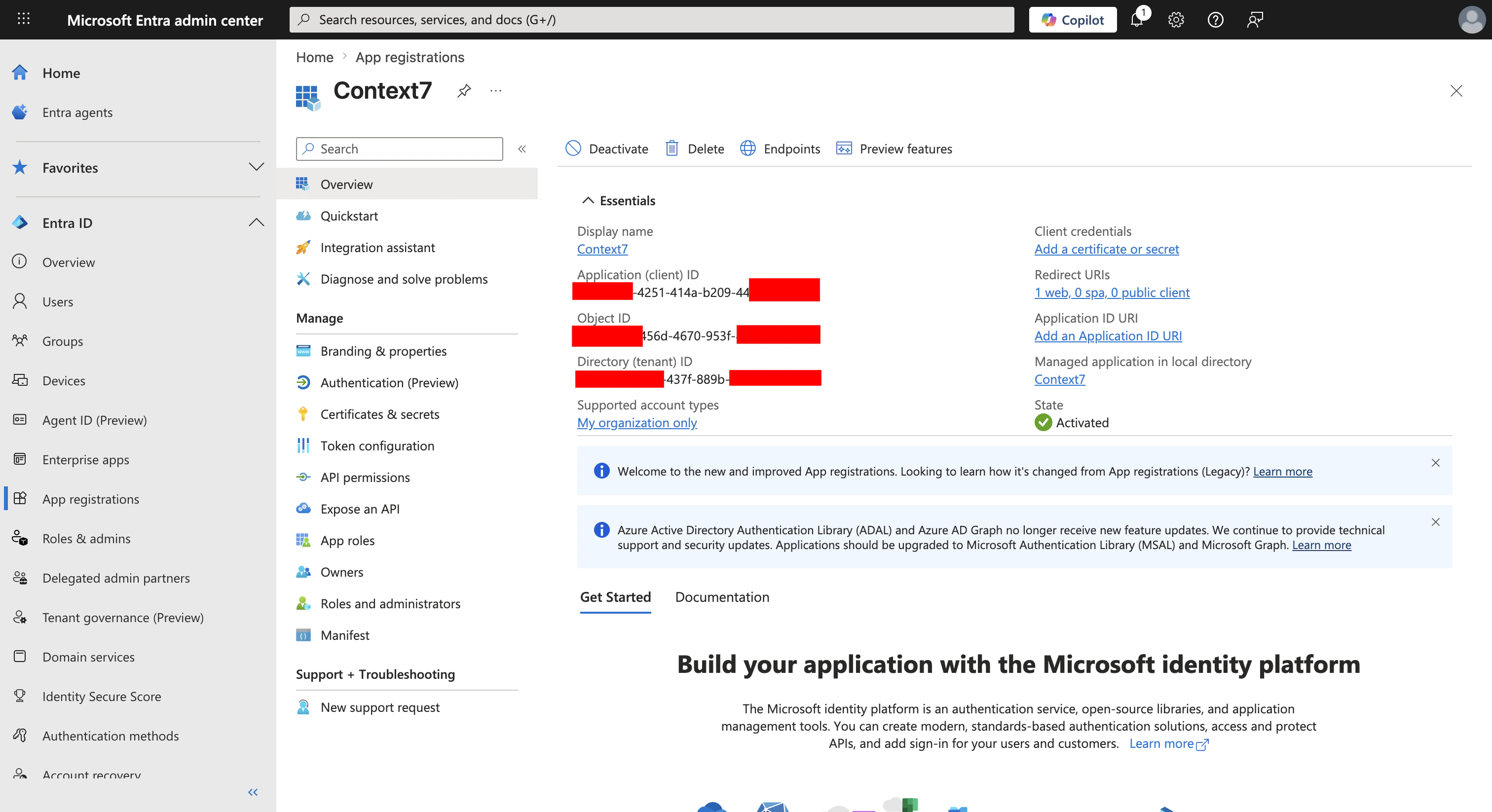 These aren't secrets. The client ID is public information that's sent in every sign-in request; the tenant ID identifies your Entra directory. It's still good hygiene to treat them like configuration values rather than pasting them into public places.
### Step 3: Create a client secret
From the app's left sidebar, open **Certificates & secrets**, stay on the **Client secrets** tab, then click **+ New client secret**.
Give it a description (for example, `Context7 on-prem`), pick an expiry (180 days or 12 months are common), and click **Add**.
These aren't secrets. The client ID is public information that's sent in every sign-in request; the tenant ID identifies your Entra directory. It's still good hygiene to treat them like configuration values rather than pasting them into public places.
### Step 3: Create a client secret
From the app's left sidebar, open **Certificates & secrets**, stay on the **Client secrets** tab, then click **+ New client secret**.
Give it a description (for example, `Context7 on-prem`), pick an expiry (180 days or 12 months are common), and click **Add**.
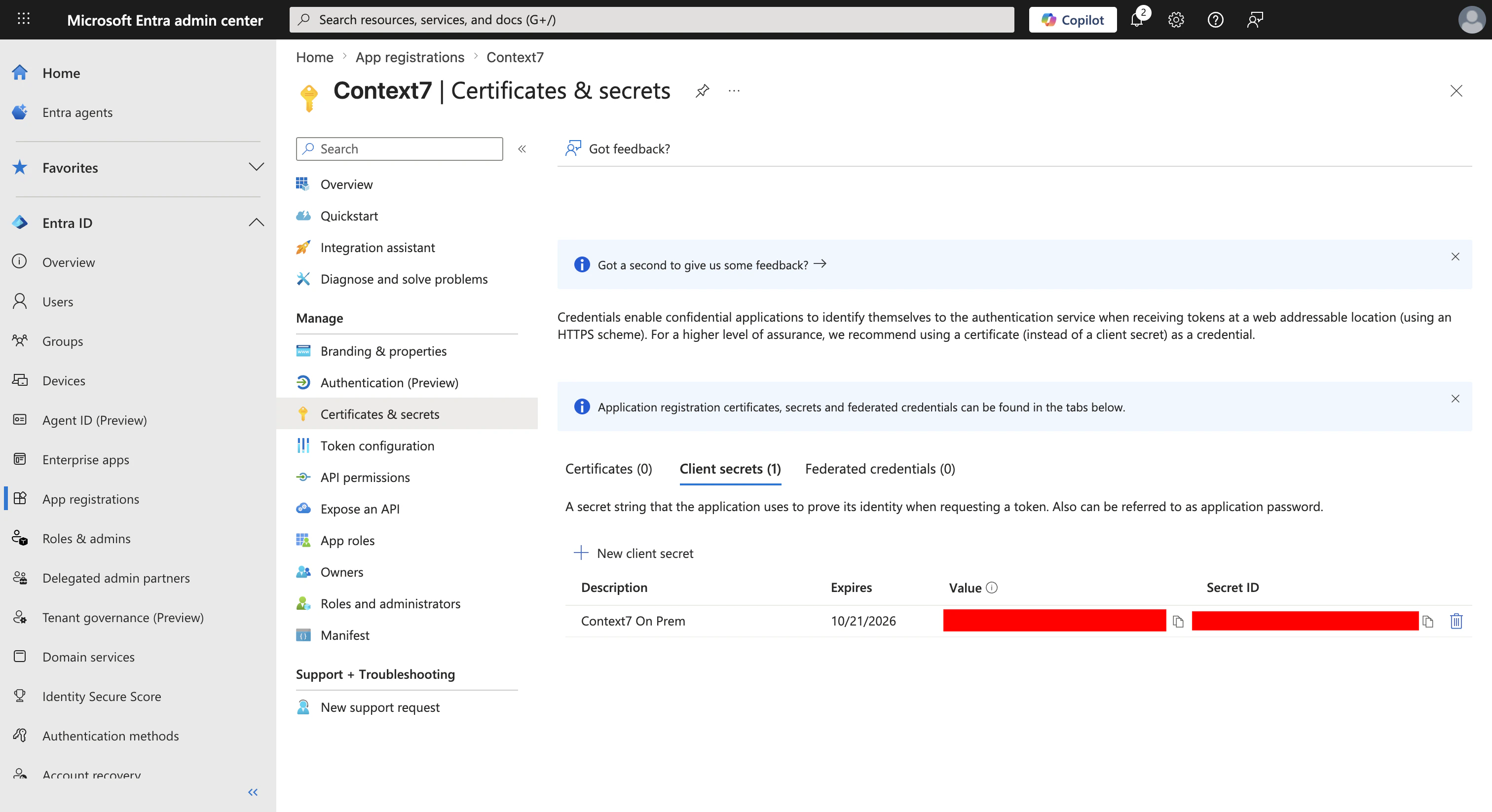 The **Value** column is only shown once, right after you create the secret. Copy it immediately. If you navigate away before copying, you'll need to create a new secret and start over.
Copy the **Value**. This is what Context7 will use to authenticate itself when talking to Microsoft. Put it next to the client and tenant IDs you copied earlier.
### Step 4: Define the two app roles
Context7 maps Entra app roles to its own admin/member roles. You'll create one of each in the Entra app.
From the left sidebar, click **App roles**, then **+ Create app role**. Fill in the first role:
* **Display name**: `Context7 Admin`
* **Allowed member types**: *Users/Groups*
* **Value**: `Context7.Admin`
* **Description**: anything descriptive, like "Full admin access to the Context7 workspace"
* Leave *Do you want to enable this app role?* checked.
Click **Apply**.
Repeat for the member role:
* **Display name**: `Context7 Member`
* **Allowed member types**: *Users/Groups*
* **Value**: `Context7.Member`
* **Description**: "Standard member access"
The **Value** column is only shown once, right after you create the secret. Copy it immediately. If you navigate away before copying, you'll need to create a new secret and start over.
Copy the **Value**. This is what Context7 will use to authenticate itself when talking to Microsoft. Put it next to the client and tenant IDs you copied earlier.
### Step 4: Define the two app roles
Context7 maps Entra app roles to its own admin/member roles. You'll create one of each in the Entra app.
From the left sidebar, click **App roles**, then **+ Create app role**. Fill in the first role:
* **Display name**: `Context7 Admin`
* **Allowed member types**: *Users/Groups*
* **Value**: `Context7.Admin`
* **Description**: anything descriptive, like "Full admin access to the Context7 workspace"
* Leave *Do you want to enable this app role?* checked.
Click **Apply**.
Repeat for the member role:
* **Display name**: `Context7 Member`
* **Allowed member types**: *Users/Groups*
* **Value**: `Context7.Member`
* **Description**: "Standard member access"
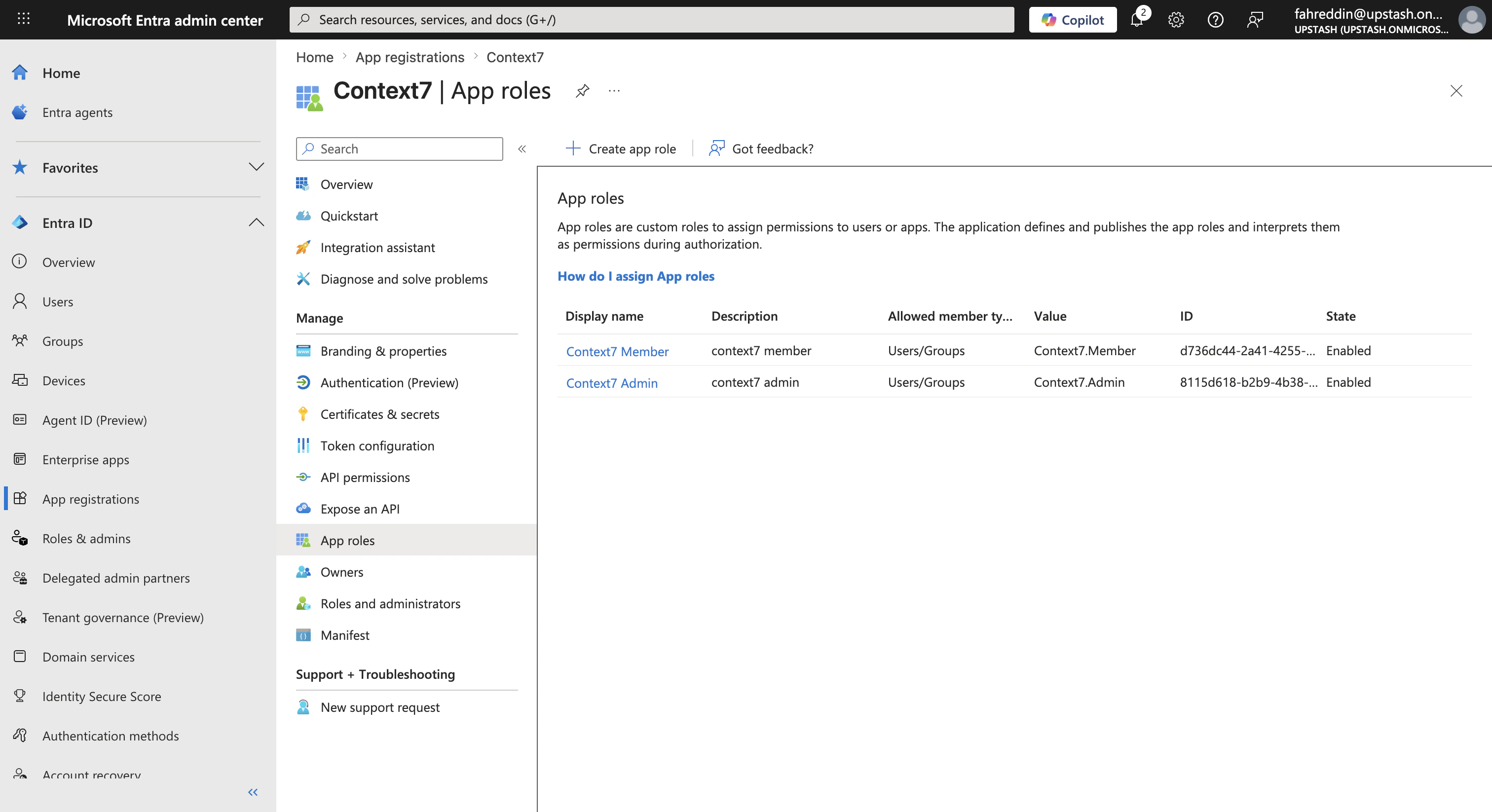 The **Value** column is what ends up in the sign-in token's `roles` claim. Context7 defaults to looking for `Context7.Admin` and `Context7.Member`, but if your organization has a naming convention (for example, `CTX7_ADMIN`), you can use those values instead. Just remember what you chose so you can enter the same strings in Context7 later.
### Step 5: Require assignment and assign users
By default, any user in your tenant can attempt to sign in to an Entra-registered app. You almost certainly want to restrict that to a known group of people.
Go back to **Microsoft Entra ID → Enterprise applications** (a *different* section from App registrations, but the same app viewed differently). Find and click your **Context7** app, open **Properties**, set **Assignment required?** to **Yes**, and **Save**.
The **Value** column is what ends up in the sign-in token's `roles` claim. Context7 defaults to looking for `Context7.Admin` and `Context7.Member`, but if your organization has a naming convention (for example, `CTX7_ADMIN`), you can use those values instead. Just remember what you chose so you can enter the same strings in Context7 later.
### Step 5: Require assignment and assign users
By default, any user in your tenant can attempt to sign in to an Entra-registered app. You almost certainly want to restrict that to a known group of people.
Go back to **Microsoft Entra ID → Enterprise applications** (a *different* section from App registrations, but the same app viewed differently). Find and click your **Context7** app, open **Properties**, set **Assignment required?** to **Yes**, and **Save**.
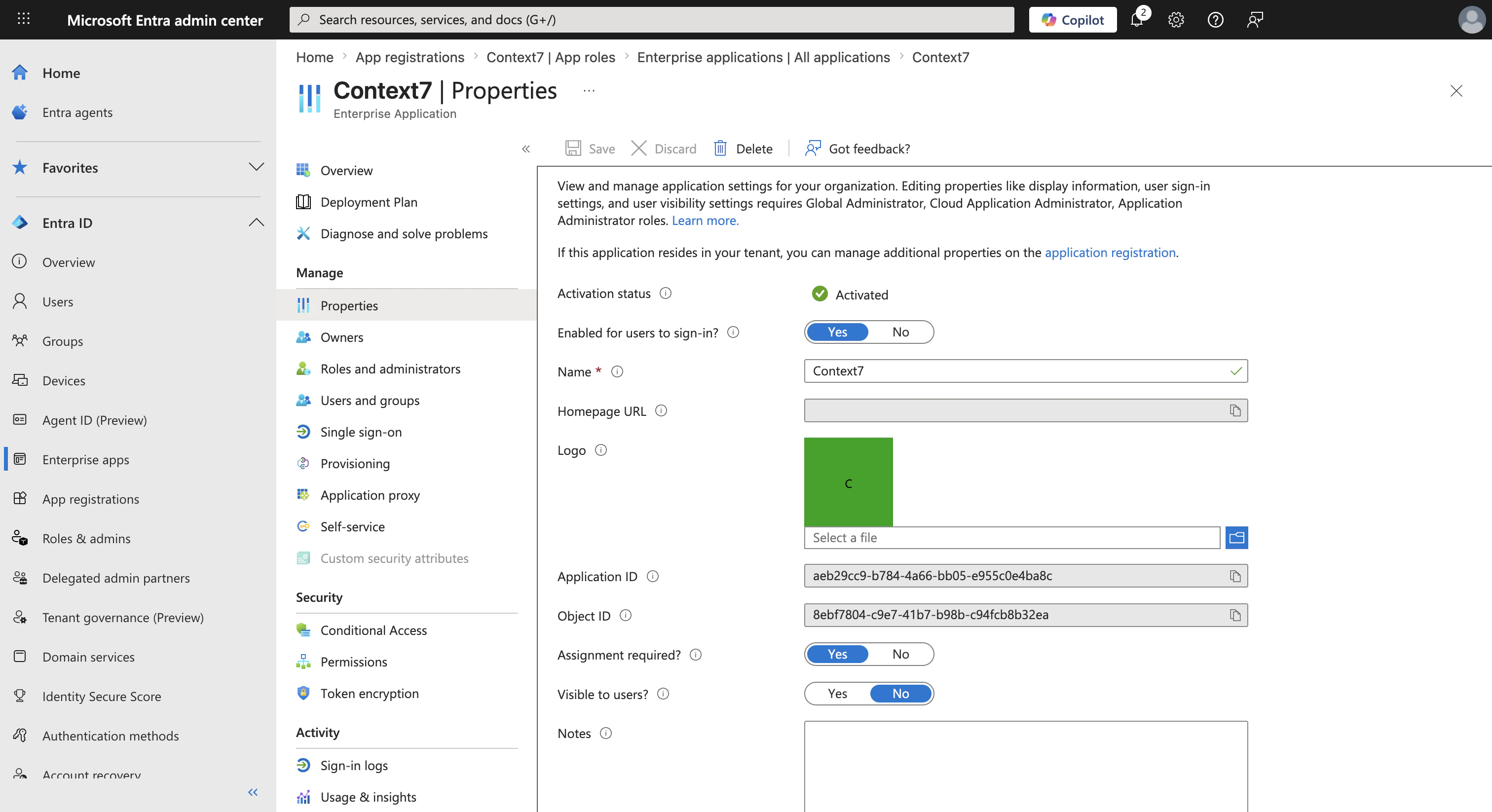 Now open **Users and groups** on the same app and click **+ Add user/group**. For each person you want to grant access:
1. Pick the user (or a group) under **Users**.
2. Pick a role: **Context7 Admin** for workspace administrators, **Context7 Member** for everyone else.
3. Click **Assign**.
Now open **Users and groups** on the same app and click **+ Add user/group**. For each person you want to grant access:
1. Pick the user (or a group) under **Users**.
2. Pick a role: **Context7 Admin** for workspace administrators, **Context7 Member** for everyone else.
3. Click **Assign**.
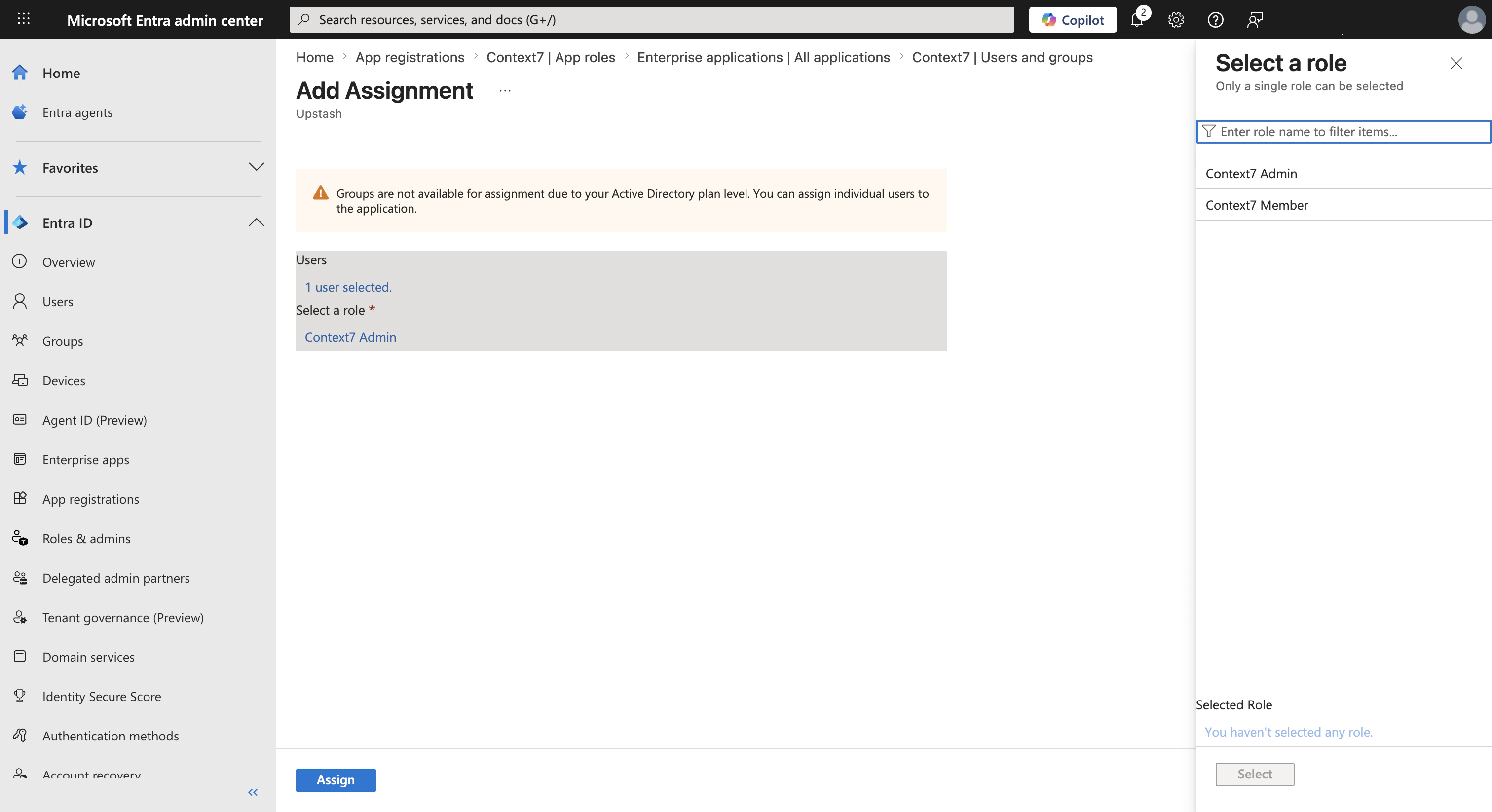 At a minimum, assign yourself the **Context7 Admin** role so you can test the flow end-to-end. If you're rolling SSO out to a team, assign a second person as a **Context7 Member** for a realistic member-side sanity check.
## Part 2: Configure Context7
### Step 1: Open the Entra SSO card
Sign in to your Context7 dashboard with the password admin account. Open **Workspace Settings**, and under **Authentication** you'll find a card titled **Microsoft Entra SSO**.
At a minimum, assign yourself the **Context7 Admin** role so you can test the flow end-to-end. If you're rolling SSO out to a team, assign a second person as a **Context7 Member** for a realistic member-side sanity check.
## Part 2: Configure Context7
### Step 1: Open the Entra SSO card
Sign in to your Context7 dashboard with the password admin account. Open **Workspace Settings**, and under **Authentication** you'll find a card titled **Microsoft Entra SSO**.
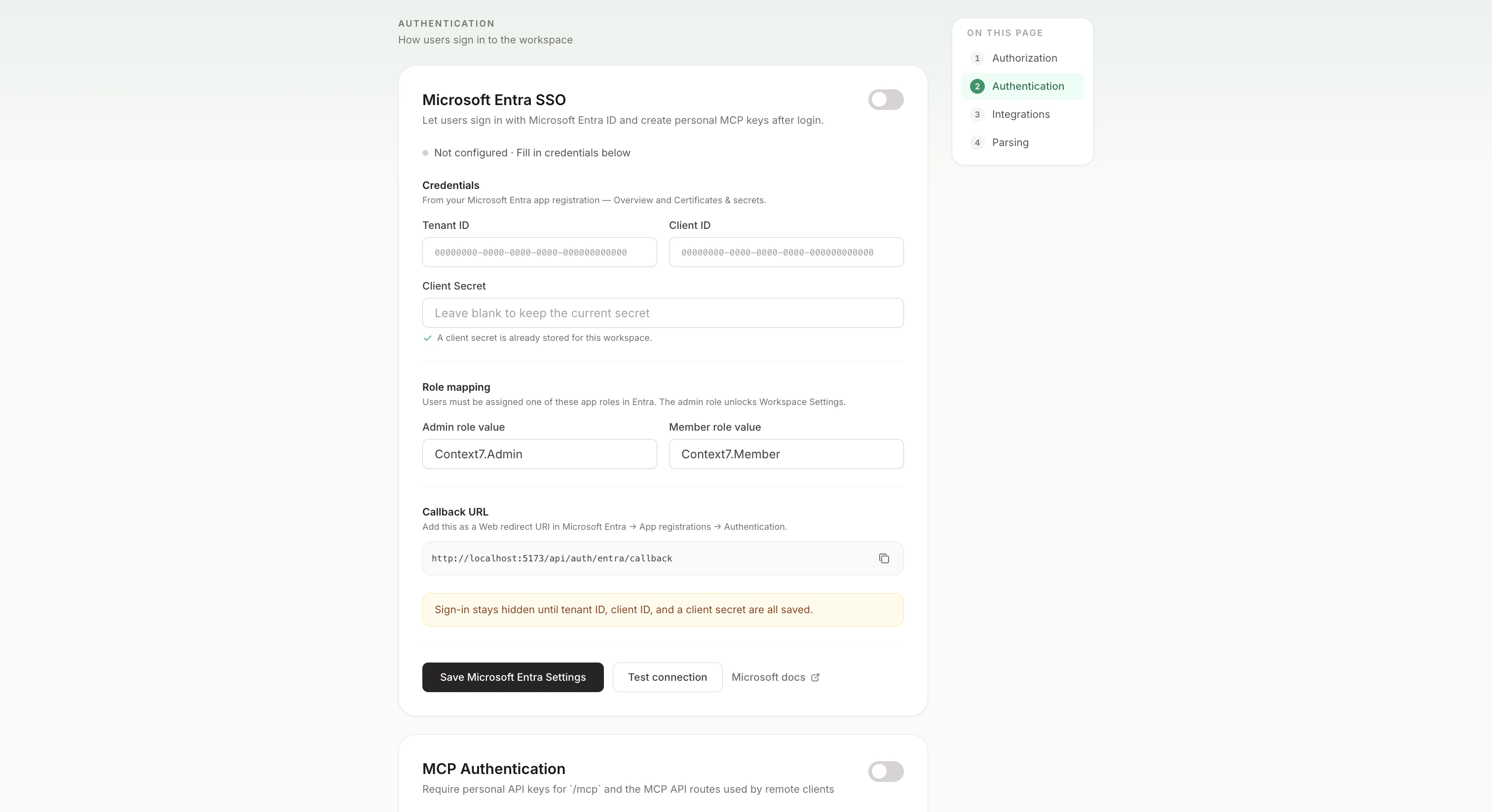 ### Step 2: Fill in the credentials
Paste the three values you copied from Azure into the form:
* **Tenant ID** → the Directory (tenant) ID from the Azure Overview page
* **Client ID** → the Application (client) ID from the same page
* **Client Secret** → the secret *Value* from the Certificates & secrets page
If your organization uses different role names from the defaults, update **Admin role value** and **Member role value** to match the strings you entered as **Value** when creating the app roles in Azure.
The **Callback URL** shown at the bottom of the card is exactly what Context7 will send to Microsoft during sign-in. If it doesn't match the redirect URI you registered in Step 1 of Part 1, go back to Azure → App registrations → Context7 → Authentication and fix it there. The copy button next to the URL makes it easy to paste into the Azure form verbatim.
### Step 3: Test the connection
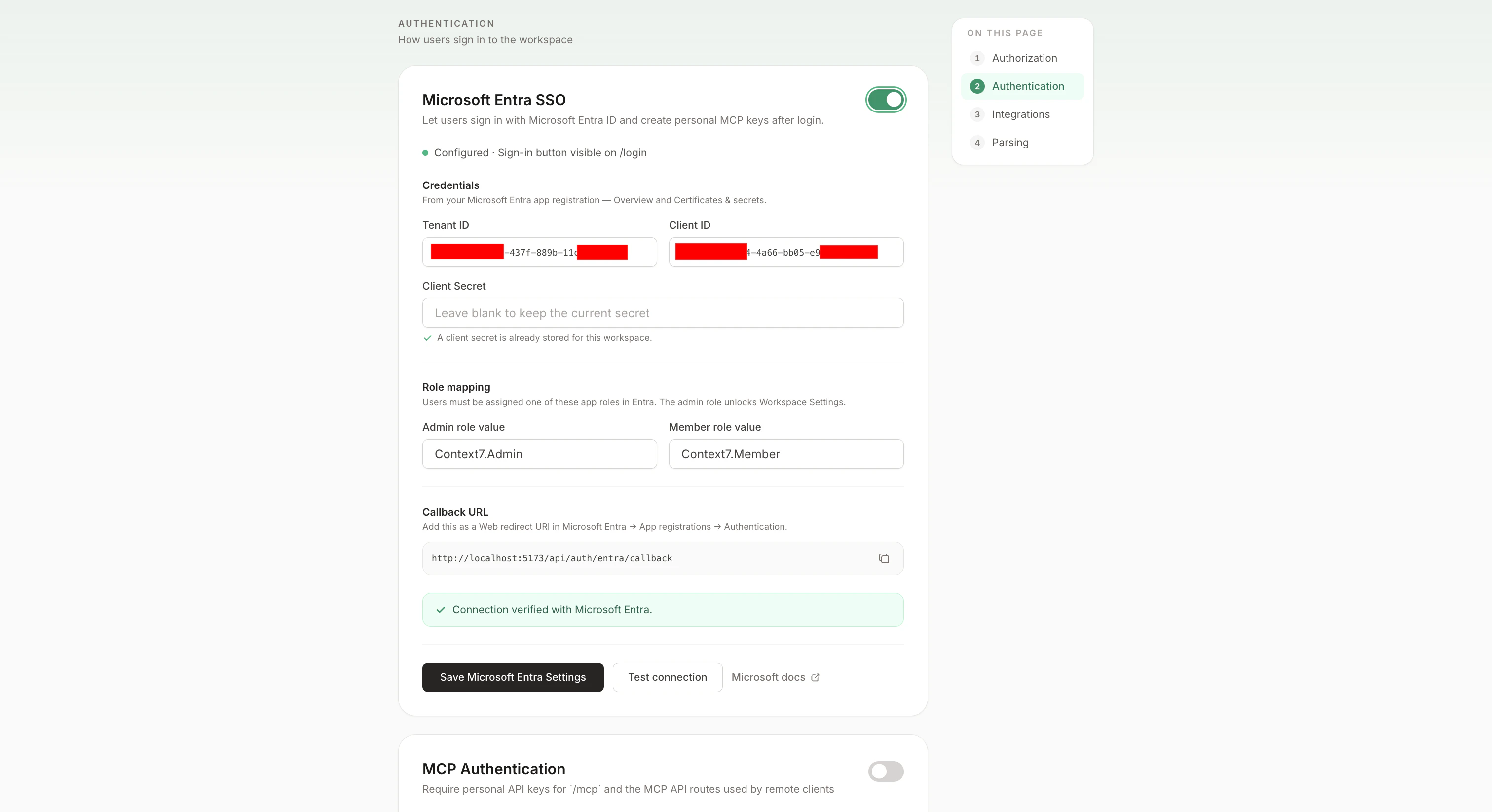
Before turning SSO on for your users, click **Test connection**. Context7 will make a server-to-server request to Microsoft using the credentials you entered. You'll see one of three results:
* **Green banner**: credentials are valid. You're ready to flip the toggle on.
* **"Tenant ID is invalid"**: the Tenant ID doesn't match an Entra directory. Double-check you haven't pasted the Client ID into the Tenant field (an easy mistake, since both are GUIDs).
* **"Client ID was not found in this tenant"** or **"Client secret is invalid"**: recheck the values against the Azure Overview and Certificates & secrets pages. If the secret expired, generate a new one in Azure and paste the new value.
### Step 4: Enable SSO
Once the test passes, click the toggle at the top-right of the card, then **Save Microsoft Entra Settings** at the bottom. The status indicator should read **Configured · Sign-in button visible on /login**.
### Step 2: Fill in the credentials
Paste the three values you copied from Azure into the form:
* **Tenant ID** → the Directory (tenant) ID from the Azure Overview page
* **Client ID** → the Application (client) ID from the same page
* **Client Secret** → the secret *Value* from the Certificates & secrets page
If your organization uses different role names from the defaults, update **Admin role value** and **Member role value** to match the strings you entered as **Value** when creating the app roles in Azure.
The **Callback URL** shown at the bottom of the card is exactly what Context7 will send to Microsoft during sign-in. If it doesn't match the redirect URI you registered in Step 1 of Part 1, go back to Azure → App registrations → Context7 → Authentication and fix it there. The copy button next to the URL makes it easy to paste into the Azure form verbatim.
### Step 3: Test the connection
Before turning SSO on for your users, click **Test connection**. Context7 will make a server-to-server request to Microsoft using the credentials you entered. You'll see one of three results:
* **Green banner**: credentials are valid. You're ready to flip the toggle on.
* **"Tenant ID is invalid"**: the Tenant ID doesn't match an Entra directory. Double-check you haven't pasted the Client ID into the Tenant field (an easy mistake, since both are GUIDs).
* **"Client ID was not found in this tenant"** or **"Client secret is invalid"**: recheck the values against the Azure Overview and Certificates & secrets pages. If the secret expired, generate a new one in Azure and paste the new value.
### Step 4: Enable SSO
Once the test passes, click the toggle at the top-right of the card, then **Save Microsoft Entra Settings** at the bottom. The status indicator should read **Configured · Sign-in button visible on /login**.
 ## Part 3: Sign in
Open `/login` in a new browser tab. Incognito is handy here because it guarantees you aren't reusing your existing admin session. You should see a **Continue with Microsoft Entra ID** button above the username/password form.
## Part 3: Sign in
Open `/login` in a new browser tab. Incognito is handy here because it guarantees you aren't reusing your existing admin session. You should see a **Continue with Microsoft Entra ID** button above the username/password form.
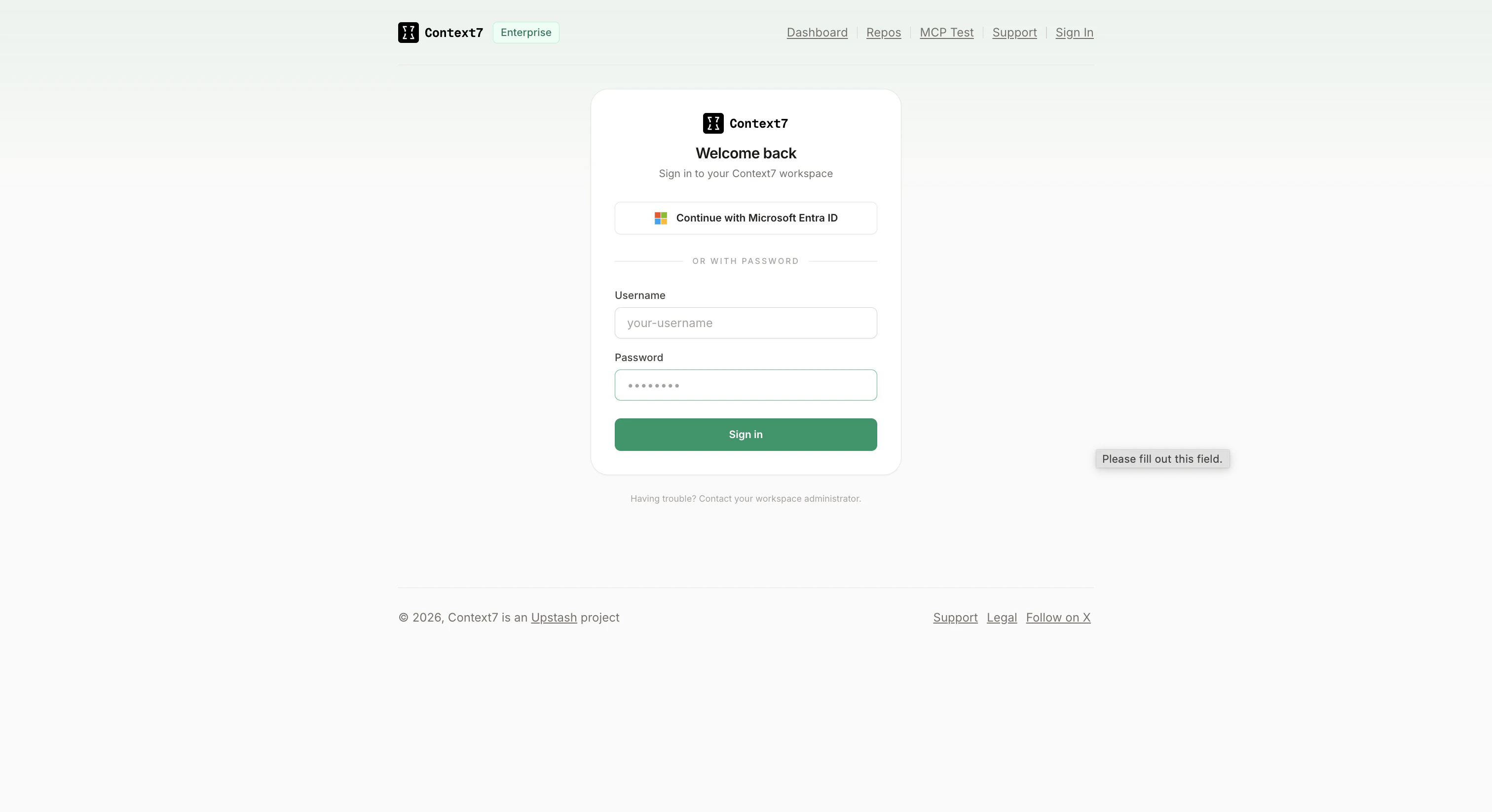 Click it. Microsoft handles the authentication. You may need to pick an account, consent to the app on first sign-in, or complete MFA depending on your tenant's policies. On success you're bounced back to Context7, a session cookie is set, and you're signed in.
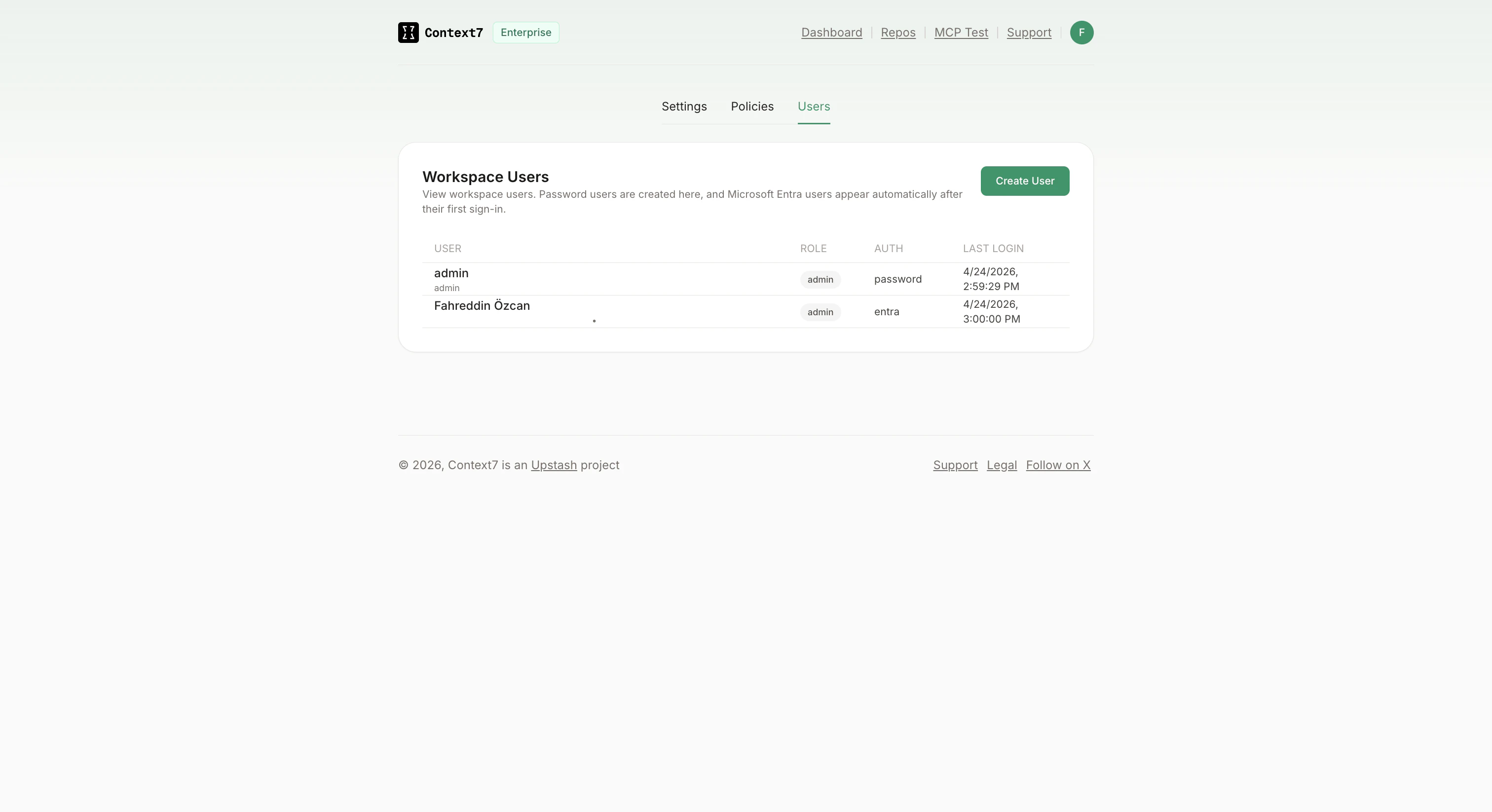
The first time each person signs in, Context7 creates a user record with the display name, email, and role sourced from their Entra account. On subsequent sign-ins, the existing record is updated with any changes to those fields (for example, if you reassign them from Member to Admin in Entra, the promotion takes effect on their next sign-in).
## Managing roles after setup
Role assignments live entirely in Entra. To change someone's access in Context7:
* **Promote a member to admin**: in Entra, go to Enterprise applications → Context7 → Users and groups, remove their Member role, add the Admin role, and ask them to sign out and back in.
* **Revoke access**: remove the user from Users and groups in Entra. Existing browser sessions remain valid until they expire or sign out. If you need to cut them off immediately, restart Context7 (in-memory sessions are cleared on restart) or have an admin explicitly delete their user row from the workspace.
* **Audit who signed in recently**: **Workspace Settings → Users** shows every Context7 user with their auth provider and last-login timestamp.
Click it. Microsoft handles the authentication. You may need to pick an account, consent to the app on first sign-in, or complete MFA depending on your tenant's policies. On success you're bounced back to Context7, a session cookie is set, and you're signed in.
The first time each person signs in, Context7 creates a user record with the display name, email, and role sourced from their Entra account. On subsequent sign-ins, the existing record is updated with any changes to those fields (for example, if you reassign them from Member to Admin in Entra, the promotion takes effect on their next sign-in).
## Managing roles after setup
Role assignments live entirely in Entra. To change someone's access in Context7:
* **Promote a member to admin**: in Entra, go to Enterprise applications → Context7 → Users and groups, remove their Member role, add the Admin role, and ask them to sign out and back in.
* **Revoke access**: remove the user from Users and groups in Entra. Existing browser sessions remain valid until they expire or sign out. If you need to cut them off immediately, restart Context7 (in-memory sessions are cleared on restart) or have an admin explicitly delete their user row from the workspace.
* **Audit who signed in recently**: **Workspace Settings → Users** shows every Context7 user with their auth provider and last-login timestamp.
 ## Troubleshooting
### `AADSTS50011: redirect URI mismatch`
The redirect URI Context7 sent doesn't match any redirect URI registered on the Azure app. Open the app in Azure → **Authentication** and compare the list against the **Callback URL** shown on the Context7 SSO card. Check especially:
* `http://` vs `https://` must match exactly.
* Port number: if you're running Context7 on a non-standard port, the Entra registration needs the same port.
* Path: must be `/api/auth/entra/callback` with no trailing characters.
If you're running behind a reverse proxy, make sure it forwards the `Host` header unchanged; otherwise Context7 will build a callback URL for the internal host, not the public one your users see.
### "This Microsoft Entra account is not assigned a supported Context7 app role"
The user completed Microsoft sign-in but doesn't have either the Admin or Member app role assigned. Open Enterprise applications → Context7 → Users and groups, and verify they're listed with a role. If they are, confirm the role **Value** in the app registration matches the **Admin role value** / **Member role value** you entered in Context7 (they're case-sensitive).
### "Microsoft sign-in session expired"
This means the short-lived cookie Context7 uses to track the in-flight sign-in request was dropped or didn't come back. Most common causes:
* The user started sign-in on one host (for example `localhost:3000`) and came back on a different one (`localhost:5173`). Stick to one host for the whole flow.
* A browser extension or strict privacy setting is blocking cookies.
Have them retry in a clean browser window.
### The Entra button doesn't appear on `/login`
The card's status indicator tells you why:
* **Not configured**: tenant ID, client ID, or client secret is missing. Fill them in and save.
* **Configured · Toggle on to show the sign-in button**: credentials are saved but the feature is off. Flip the toggle at the top of the card.
### Client secret expired
Entra rejects the test with `"Client secret has expired"` once the secret passes its expiry date. In Azure → Certificates & secrets, create a new secret and paste the new **Value** into the Context7 card. Then click **Test connection** to verify, and **Save**.
## What this does *not* cover
A few things that are out of scope for SSO itself but often come up when rolling it out:
* **Personal MCP API keys**. Once a user signs in via Entra, they can create their own MCP API keys from **Personal Settings → API Keys**. Those are separate from SSO and covered in the main On-Premise guide.
* **Group-based role mapping**. Context7 reads app roles, not group membership. If your team assigns access via Entra security groups, add the group to Users and groups with one of the two Context7 roles.
* **SCIM provisioning**. Users are created lazily on first sign-in. There's no background sync pulling the whole directory.
For help with Entra-side policies, conditional access, or MFA, work with your Entra admin. Those are tenant-wide concerns and Context7 respects whatever Microsoft returns at the end of the sign-in.
If you run into something not covered above, contact [context7@upstash.com](mailto:context7@upstash.com) with the **Request Id** from any Microsoft error page and a screenshot of the Context7 SSO card's status indicator.
## Troubleshooting
### `AADSTS50011: redirect URI mismatch`
The redirect URI Context7 sent doesn't match any redirect URI registered on the Azure app. Open the app in Azure → **Authentication** and compare the list against the **Callback URL** shown on the Context7 SSO card. Check especially:
* `http://` vs `https://` must match exactly.
* Port number: if you're running Context7 on a non-standard port, the Entra registration needs the same port.
* Path: must be `/api/auth/entra/callback` with no trailing characters.
If you're running behind a reverse proxy, make sure it forwards the `Host` header unchanged; otherwise Context7 will build a callback URL for the internal host, not the public one your users see.
### "This Microsoft Entra account is not assigned a supported Context7 app role"
The user completed Microsoft sign-in but doesn't have either the Admin or Member app role assigned. Open Enterprise applications → Context7 → Users and groups, and verify they're listed with a role. If they are, confirm the role **Value** in the app registration matches the **Admin role value** / **Member role value** you entered in Context7 (they're case-sensitive).
### "Microsoft sign-in session expired"
This means the short-lived cookie Context7 uses to track the in-flight sign-in request was dropped or didn't come back. Most common causes:
* The user started sign-in on one host (for example `localhost:3000`) and came back on a different one (`localhost:5173`). Stick to one host for the whole flow.
* A browser extension or strict privacy setting is blocking cookies.
Have them retry in a clean browser window.
### The Entra button doesn't appear on `/login`
The card's status indicator tells you why:
* **Not configured**: tenant ID, client ID, or client secret is missing. Fill them in and save.
* **Configured · Toggle on to show the sign-in button**: credentials are saved but the feature is off. Flip the toggle at the top of the card.
### Client secret expired
Entra rejects the test with `"Client secret has expired"` once the secret passes its expiry date. In Azure → Certificates & secrets, create a new secret and paste the new **Value** into the Context7 card. Then click **Test connection** to verify, and **Save**.
## What this does *not* cover
A few things that are out of scope for SSO itself but often come up when rolling it out:
* **Personal MCP API keys**. Once a user signs in via Entra, they can create their own MCP API keys from **Personal Settings → API Keys**. Those are separate from SSO and covered in the main On-Premise guide.
* **Group-based role mapping**. Context7 reads app roles, not group membership. If your team assigns access via Entra security groups, add the group to Users and groups with one of the two Context7 roles.
* **SCIM provisioning**. Users are created lazily on first sign-in. There's no background sync pulling the whole directory.
For help with Entra-side policies, conditional access, or MFA, work with your Entra admin. Those are tenant-wide concerns and Context7 respects whatever Microsoft returns at the end of the sign-in.
If you run into something not covered above, contact [context7@upstash.com](mailto:context7@upstash.com) with the **Request Id** from any Microsoft error page and a screenshot of the Context7 SSO card's status indicator.