> ## Documentation Index
> Fetch the complete documentation index at: https://context7.com/docs/llms.txt
> Use this file to discover all available pages before exploring further.
# On-Premise Deployment
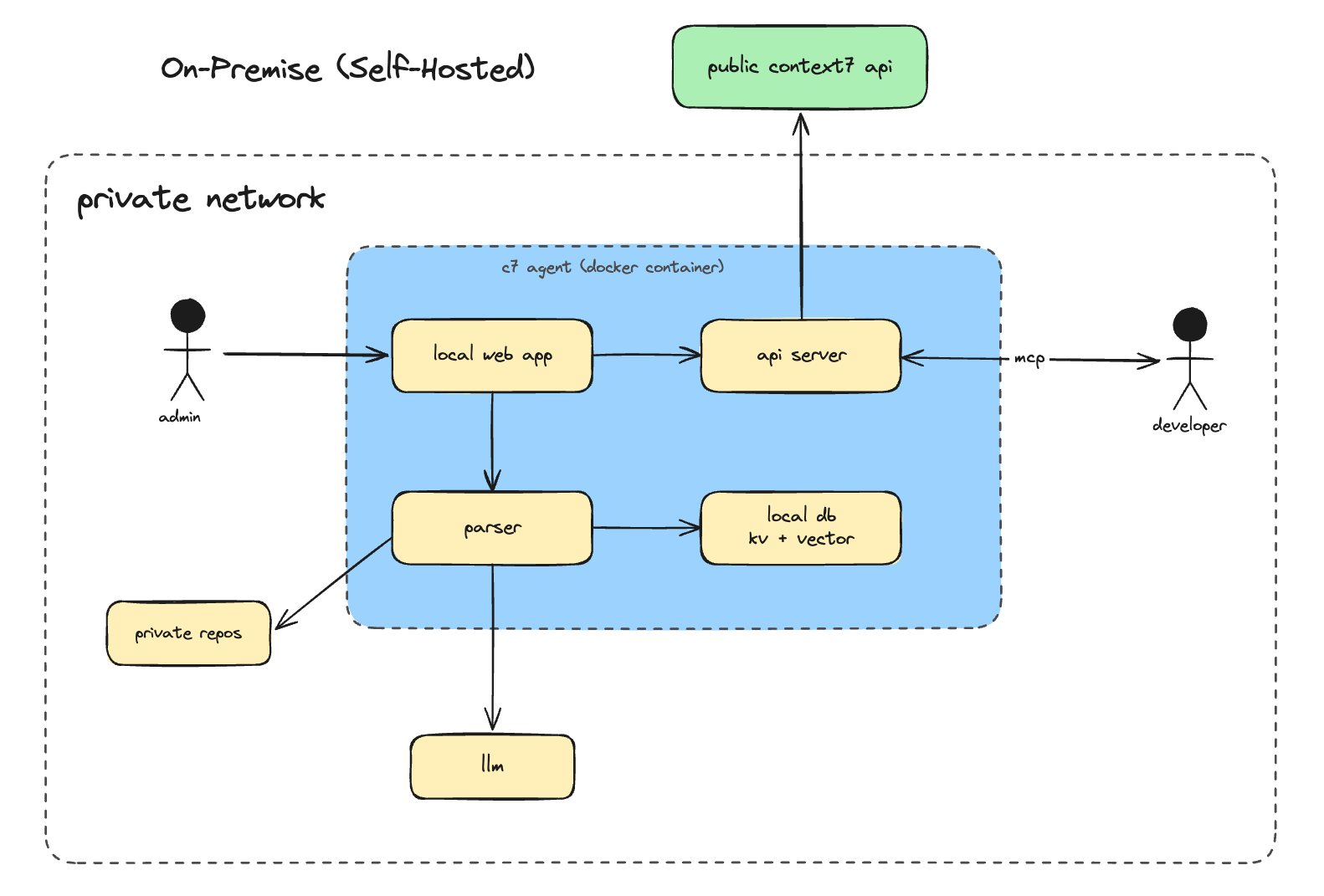
Context7 On-Premise lets you run the full Context7 stack inside your own infrastructure. Your code, documentation, and embeddings never leave your environment.
## What's Included
* Full Context7 parsing and indexing pipeline
* Local vector storage (no external vector DB required)
* Built-in MCP server. Works with any MCP-compatible AI client
* Web UI for managing indexed libraries and configuration
* REST API compatible with the public Context7 API
* Private GitHub and GitLab repository ingestion
 ## Setup
Go to [context7.com/plans](https://context7.com/plans) and click **On-Premise Trial**. Fill out the request form. No credit card required. You'll receive a 30-day full-featured license key via email once approved.
Follow the deployment guide for your platform:
Deploy with Docker Compose
Deploy on Kubernetes with raw manifests
Open `http://localhost:3000` in your browser. On first launch, the setup wizard guides you through configuring:
1. **AI Provider** - Choose OpenAI, Anthropic, Gemini, or a custom OpenAI-compatible endpoint. Enter your API key and model name.
2. **Embedding Provider** - Use the same provider as your LLM, or configure a separate one for embeddings.
3. **Git Tokens** - Add a GitHub and/or GitLab token for the platforms you use.
All configuration is stored locally in the embedded database and can be updated later from the Settings page.
From the dashboard, click **Add Repository** and enter a GitHub or GitLab URL. Once ingestion completes, your private docs are ready to query.
You can also add libraries via the REST API:
```bash theme={null}
curl -X POST http://localhost:3000/api/parse \
-H "Content-Type: application/json" \
-d '{"url": "https://github.com/your-org/your-repo"}'
```
## Connecting Your AI Client
Point your MCP client at your deployment URL. Replace `https://context7.internal.yourcompany.com` with your actual host.
### Claude Code
```bash theme={null}
claude mcp add --scope user --transport http context7 https://context7.internal.yourcompany.com/mcp
```
### Cursor
Add to `~/.cursor/mcp.json`:
```json theme={null}
{
"mcpServers": {
"context7": {
"url": "https://context7.internal.yourcompany.com/mcp"
}
}
}
```
### Opencode
```json theme={null}
{
"mcp": {
"context7": {
"type": "remote",
"url": "https://context7.internal.yourcompany.com/mcp",
"enabled": true
}
}
}
```
For other clients, see [All Clients](/resources/all-clients).
## Configuration
### Environment Variables
These are set in your `docker-compose.yml` or `.env` file before starting the container.
| Variable | Required | Description |
| ------------- | -------- | ------------------------------------------------------- |
| `LICENSE_KEY` | Yes | License key issued by Upstash |
| `PORT` | No | HTTP port (default: `3000`) |
| `DATA_DIR` | No | Data directory inside the container (default: `./data`) |
AI provider keys, model settings, and git tokens are **not** set via environment variables. They are configured through the setup wizard and can be updated anytime from the Settings page in the web UI.
### AI Provider Settings
Configured via the **Settings** page in the web UI.
| Setting | Description |
| ------------ | ------------------------------------------------------------------- |
| LLM Provider | `openai`, `anthropic`, `gemini`, or custom |
| LLM API Key | API key for your chosen provider |
| LLM Model | Model name (e.g. `gpt-4o`, `claude-sonnet-4-5`, `gemini-2.5-flash`) |
| LLM Base URL | Custom OpenAI-compatible endpoint (for local models or proxies) |
#### Examples
```
Provider: custom
Base URL: https://openrouter.ai/api/v1
Model: openai/gpt-4o
API Key: sk-or-v1-...
```
```
Provider: custom
Base URL: http://host.docker.internal:11434/v1
Model: llama3.2
API Key: ollama
```
### Embedding Settings
By default, Context7 uses the same provider as your LLM for generating embeddings. You can configure a separate embedding provider if needed.
| Setting | Description |
| ------------------ | ----------------------------------------------------------- |
| Embedding Provider | `openai` or `gemini` |
| Embedding API Key | Separate API key for embeddings (falls back to LLM API key) |
| Embedding Model | Embedding model name (e.g. `text-embedding-3-small`) |
| Embedding Base URL | Custom embedding endpoint |
### Git Access Tokens
Configured via the **Settings** page in the web UI.
| Setting | Description |
| ------------ | -------------------------------------------------------------- |
| GitHub Token | GitHub Personal Access Token. Required for GitHub repositories |
| GitLab Token | GitLab token. Required for GitLab repositories |
You only need tokens for the platforms you use. If you only parse GitLab repos, you don't need a GitHub token, and vice versa. Create tokens with `repo` scope (GitHub) or `read_repository` scope (GitLab) for private repository access.
## Access Control
Admin credentials are set during first login (default: `admin` / `admin`). Change these immediately after setup via **Settings > Change Credentials**.
The Settings page lets you control which operations are available without authentication.
| Permission | Default | Description |
| ------------------------------ | ------- | ------------------------------------------------ |
| Allow anonymous parse | Off | Allow unauthenticated users to trigger parsing |
| Allow anonymous refresh | Off | Allow unauthenticated users to refresh libraries |
| Allow anonymous delete | Off | Allow unauthenticated users to delete libraries |
| Allow anonymous support bundle | Off | Allow unauthenticated support bundle downloads |
When a permission is off, the operation requires admin login. The MCP endpoint and search API are always publicly accessible.
## Policies
Policies let you control which public documentation from the Context7 cloud is accessible to your on-premise instance. They do not affect locally parsed on-premise content.
Access Policies from **Settings > Policies** tab. Requires admin login and a valid `LICENSE_KEY`.
For details on source type toggles and library filters, see [Customizing What Is Retrieved](/security/data-privacy#customizing-what-is-retrieved).
## Web UI
Open your deployment URL in a browser to access the dashboard. From here you can:
* Add and remove libraries
* Trigger re-indexing
* Monitor parsing status and logs
* Update AI provider settings, git tokens, and permissions
* Configure policies for public cloud documentation access
* Test MCP connectivity
* Change admin credentials
## Operations
For updating, health checks, and other operational tasks, see the deployment guide for your platform:
* [Docker Operations](/enterprise/deployment/docker#operations)
* [Kubernetes Operations](/enterprise/deployment/kubernetes#operations)
## Support
For license issues, upgrade requests, or deployment questions, contact [context7@upstash.com](mailto:context7@upstash.com).
## Setup
Go to [context7.com/plans](https://context7.com/plans) and click **On-Premise Trial**. Fill out the request form. No credit card required. You'll receive a 30-day full-featured license key via email once approved.
Follow the deployment guide for your platform:
Deploy with Docker Compose
Deploy on Kubernetes with raw manifests
Open `http://localhost:3000` in your browser. On first launch, the setup wizard guides you through configuring:
1. **AI Provider** - Choose OpenAI, Anthropic, Gemini, or a custom OpenAI-compatible endpoint. Enter your API key and model name.
2. **Embedding Provider** - Use the same provider as your LLM, or configure a separate one for embeddings.
3. **Git Tokens** - Add a GitHub and/or GitLab token for the platforms you use.
All configuration is stored locally in the embedded database and can be updated later from the Settings page.
From the dashboard, click **Add Repository** and enter a GitHub or GitLab URL. Once ingestion completes, your private docs are ready to query.
You can also add libraries via the REST API:
```bash theme={null}
curl -X POST http://localhost:3000/api/parse \
-H "Content-Type: application/json" \
-d '{"url": "https://github.com/your-org/your-repo"}'
```
## Connecting Your AI Client
Point your MCP client at your deployment URL. Replace `https://context7.internal.yourcompany.com` with your actual host.
### Claude Code
```bash theme={null}
claude mcp add --scope user --transport http context7 https://context7.internal.yourcompany.com/mcp
```
### Cursor
Add to `~/.cursor/mcp.json`:
```json theme={null}
{
"mcpServers": {
"context7": {
"url": "https://context7.internal.yourcompany.com/mcp"
}
}
}
```
### Opencode
```json theme={null}
{
"mcp": {
"context7": {
"type": "remote",
"url": "https://context7.internal.yourcompany.com/mcp",
"enabled": true
}
}
}
```
For other clients, see [All Clients](/resources/all-clients).
## Configuration
### Environment Variables
These are set in your `docker-compose.yml` or `.env` file before starting the container.
| Variable | Required | Description |
| ------------- | -------- | ------------------------------------------------------- |
| `LICENSE_KEY` | Yes | License key issued by Upstash |
| `PORT` | No | HTTP port (default: `3000`) |
| `DATA_DIR` | No | Data directory inside the container (default: `./data`) |
AI provider keys, model settings, and git tokens are **not** set via environment variables. They are configured through the setup wizard and can be updated anytime from the Settings page in the web UI.
### AI Provider Settings
Configured via the **Settings** page in the web UI.
| Setting | Description |
| ------------ | ------------------------------------------------------------------- |
| LLM Provider | `openai`, `anthropic`, `gemini`, or custom |
| LLM API Key | API key for your chosen provider |
| LLM Model | Model name (e.g. `gpt-4o`, `claude-sonnet-4-5`, `gemini-2.5-flash`) |
| LLM Base URL | Custom OpenAI-compatible endpoint (for local models or proxies) |
#### Examples
```
Provider: custom
Base URL: https://openrouter.ai/api/v1
Model: openai/gpt-4o
API Key: sk-or-v1-...
```
```
Provider: custom
Base URL: http://host.docker.internal:11434/v1
Model: llama3.2
API Key: ollama
```
### Embedding Settings
By default, Context7 uses the same provider as your LLM for generating embeddings. You can configure a separate embedding provider if needed.
| Setting | Description |
| ------------------ | ----------------------------------------------------------- |
| Embedding Provider | `openai` or `gemini` |
| Embedding API Key | Separate API key for embeddings (falls back to LLM API key) |
| Embedding Model | Embedding model name (e.g. `text-embedding-3-small`) |
| Embedding Base URL | Custom embedding endpoint |
### Git Access Tokens
Configured via the **Settings** page in the web UI.
| Setting | Description |
| ------------ | -------------------------------------------------------------- |
| GitHub Token | GitHub Personal Access Token. Required for GitHub repositories |
| GitLab Token | GitLab token. Required for GitLab repositories |
You only need tokens for the platforms you use. If you only parse GitLab repos, you don't need a GitHub token, and vice versa. Create tokens with `repo` scope (GitHub) or `read_repository` scope (GitLab) for private repository access.
## Access Control
Admin credentials are set during first login (default: `admin` / `admin`). Change these immediately after setup via **Settings > Change Credentials**.
The Settings page lets you control which operations are available without authentication.
| Permission | Default | Description |
| ------------------------------ | ------- | ------------------------------------------------ |
| Allow anonymous parse | Off | Allow unauthenticated users to trigger parsing |
| Allow anonymous refresh | Off | Allow unauthenticated users to refresh libraries |
| Allow anonymous delete | Off | Allow unauthenticated users to delete libraries |
| Allow anonymous support bundle | Off | Allow unauthenticated support bundle downloads |
When a permission is off, the operation requires admin login. The MCP endpoint and search API are always publicly accessible.
## Policies
Policies let you control which public documentation from the Context7 cloud is accessible to your on-premise instance. They do not affect locally parsed on-premise content.
Access Policies from **Settings > Policies** tab. Requires admin login and a valid `LICENSE_KEY`.
For details on source type toggles and library filters, see [Customizing What Is Retrieved](/security/data-privacy#customizing-what-is-retrieved).
## Web UI
Open your deployment URL in a browser to access the dashboard. From here you can:
* Add and remove libraries
* Trigger re-indexing
* Monitor parsing status and logs
* Update AI provider settings, git tokens, and permissions
* Configure policies for public cloud documentation access
* Test MCP connectivity
* Change admin credentials
## Operations
For updating, health checks, and other operational tasks, see the deployment guide for your platform:
* [Docker Operations](/enterprise/deployment/docker#operations)
* [Kubernetes Operations](/enterprise/deployment/kubernetes#operations)
## Support
For license issues, upgrade requests, or deployment questions, contact [context7@upstash.com](mailto:context7@upstash.com).